



Domain Configuration #
The All Domains section is where you create and manage individual domain listings using the Domain For Sale plugin. Each domain entry represents a domain you want to sell and allows you to configure its layout, pricing, content, and offer settings.
You can access this section from the WordPress dashboard by navigating to:
Domain For Sale → All Domains
From here you can Add New domain listings or edit existing ones.
Each domain you create can be used in two different ways:
Domain Listing Page #
A domain can be displayed as part of a domain listing page using the provided shortcode.
This allows you to:
- Showcase multiple domains on your website
- Display them inside posts, pages, or widgets
- Create a portfolio-style marketplace of domains
When used this way, the selected Layout Template controls how the domain appears inside the listing.
Dedicated Landing Page #
Each domain can also act as a standalone sales landing page.
In this case, the selected layout becomes a single-page domain sales page, designed to focus visitors on purchasing or submitting an offer for that specific domain.
This approach is ideal when:
- You want a direct landing page for a premium domain
- You are forwarding a domain to its sales page
- You want a conversion-focused design for a single domain
Layout Templates #
The plugin currently provides two layout options:
- Layout 01 – A clean single-domain landing page focused on presenting the domain and collecting offers.
- Layout 02 – An enhanced layout that includes a “More Domains” section so visitors can explore additional domains you are selling.
Customization Tabs #
Each domain listing contains several configuration tabs that control how the sales page looks and behaves:
- Domain Options – Core domain settings such as pricing, offer type, and form behavior.
- Content Options – Domain description, contact details, and recommended domains.
- Style Options – Visual customization for the sales page.
- Typography – Font and text styling settings.
These options allow you to fully customize each domain listing or landing page to match your branding and sales strategy.
Domain Options #
The Domain Options tab lets you configure the core behavior of your domain sales page, including the domain name, form type, pricing model, and bidding settings.
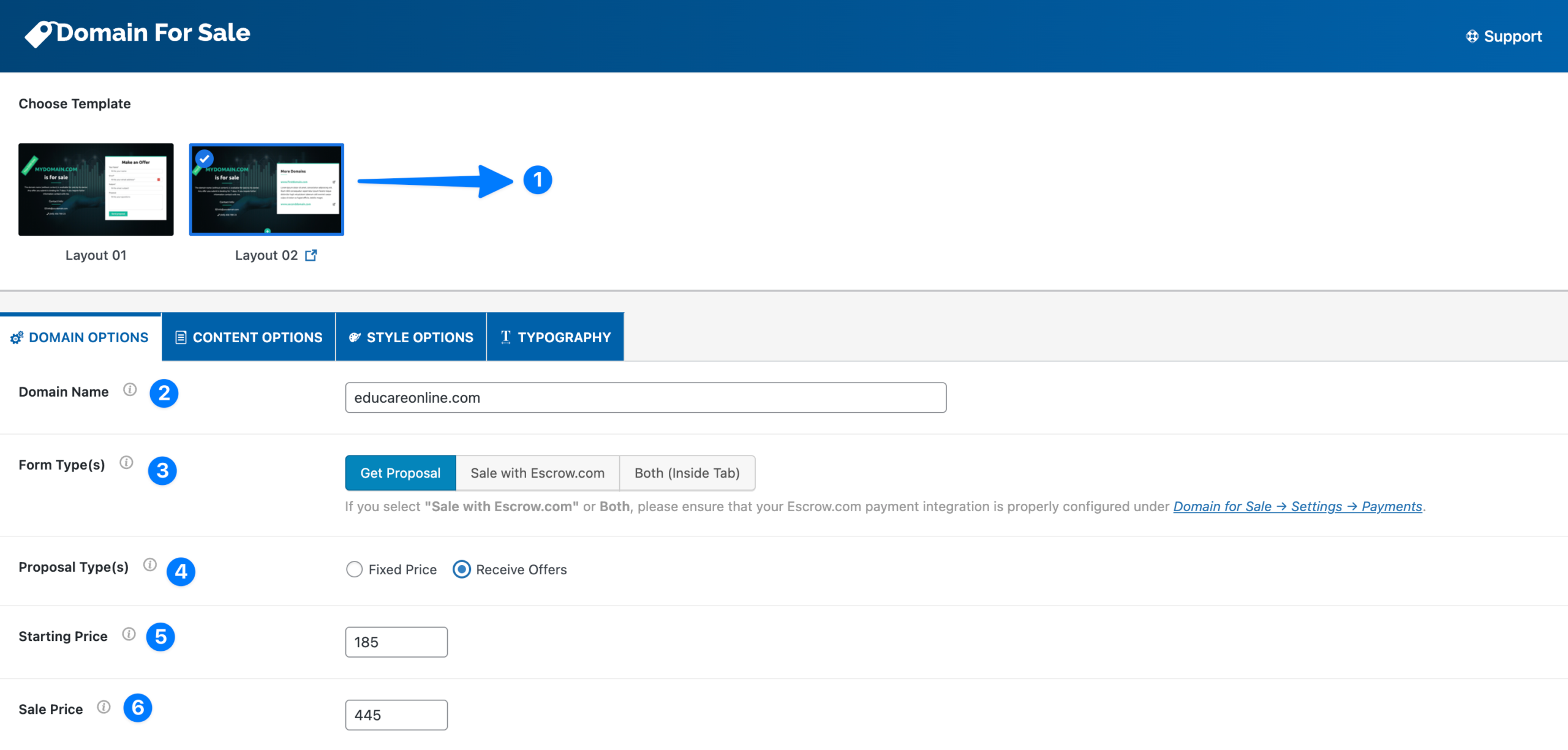
- Choose Template: Select a template design for your sales page. Currently, you can choose between Layout 01 and Layout 02.
- Layout 01 – A classic single-domain sales page.
- Layout 02 – Includes an additional “More Domains” section (see items 13–14 below).
- Domain Name: Enter the exact domain name you are selling. Example:
educareonline.com. This name will appear prominently on the sales page. - Form Type(s): Choose which type of offer form will be displayed on the layout:
- Get Proposal – Displays the default offer submission form.
- Sale with Escrow.com – Displays Escrow.com payment form for direct domain purchases.
- Both (Inside Tab) – Displays both the Proposal Form and Escrow Form in tabbed format.
💡 Note: If you select “Sale with Escrow.com” or “Both”, ensure your Escrow.com API integration is properly configured under Domain for Sale → Settings → Payments.
- Proposal Type(s): Decide how to handle pricing and offer submissions:
- Receive Offers – Visitors can submit their own bids.
- Fixed Price – A fixed purchase amount is displayed. When selected, the Sale Price field (item 6) becomes available.
- Starting Price: Set the minimum bid amount (only applies if Receive Offers is selected).
This ensures buyers can’t submit offers below your desired threshold. - Sale Price: Only visible if Fixed Price is selected.
Specify the domain’s fixed purchase price (e.g., 999).
Content Options #
The Content Options tab controls how the domain sales page appears, including promotional messages, descriptions, contact information, and recommended domains.
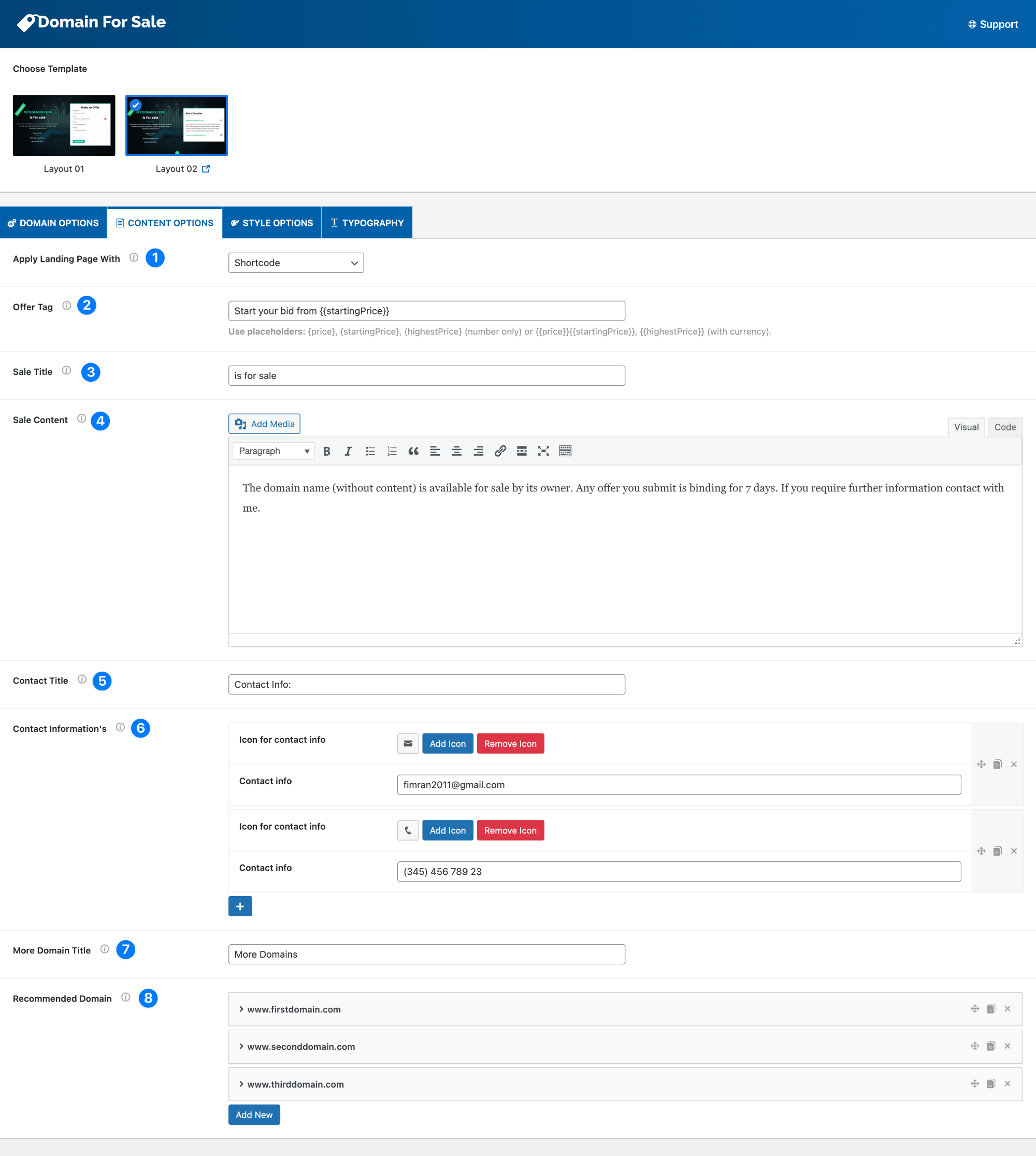
- Apply Landing Page With: Choose how the domain landing page will be displayed on your website.
- Shortcode – Generates a shortcode you can place in posts, pages, or widgets.’
- Replace Theme – Replaces your entire site with the domain sales landing page.
- Replace Single Page – Displays the sales layout on one selected page.
- Replace Multiple Pages – Allows multiple pages to display the sales layout.
- Offer Tag / Price Tag: This field changes depending on the Price Option(s) you select:
- If “Receive Offers” is selected → The Offer Tag field will appear.
- This lets you display a message like “Start your bid from $200”.
- You can use the following dynamic tags:
{startingPrice}→ Displays the number only (e.g.,200).{heightPrice}→ Displays the highest bid received (number only).{{startingPrice}}→ Displays the number with currency (e.g.,$200).{{heightPrice}}→ Displays the highest bid with currency.
- If “Fixed Price” is selected → The Price Tag field will appear.
- This lets you display a message like “Buy now for $999”.
- You can use the following dynamic tags:
{price}→ Displays the number only (e.g.,999).{{price}}→ Displays the number with currency (e.g.,$999).
- If “Receive Offers” is selected → The Offer Tag field will appear.
- Sale Title: Add a short descriptive title (e.g., “is for sale”). This appears prominently on the sales page.
- Sale Content: Add supporting text or details about your domain. The editor supports text, links, and media. This can include:
- Why the domain is valuable
- Traffic or SEO relevance
- Contact instructions
- Contact Title: Set a heading for your contact section (e.g., “Contact Info”).
- Contact Information(s): You can add as many contact entries as needed. Add multiple contact methods with optional icons:
- Phone number
- Social links
- More Domain Title (Layout 02 only): For Layout 02, you can add a heading for additional domains, e.g., “More Domains for Sale”.
- Recommended Domain (Layout 02 only): Showcase additional domains you’re selling. For each:
- Domain name – The domain you want to list.
- Domain link – Link to the sales page or info page.
- About domain – A short description of the domain’s value.
Style Options #
The Style Options tab lets you control the overall appearance of your Domain Layout. You can adjust colors, spacing, and background to match your brand or create a unique design.
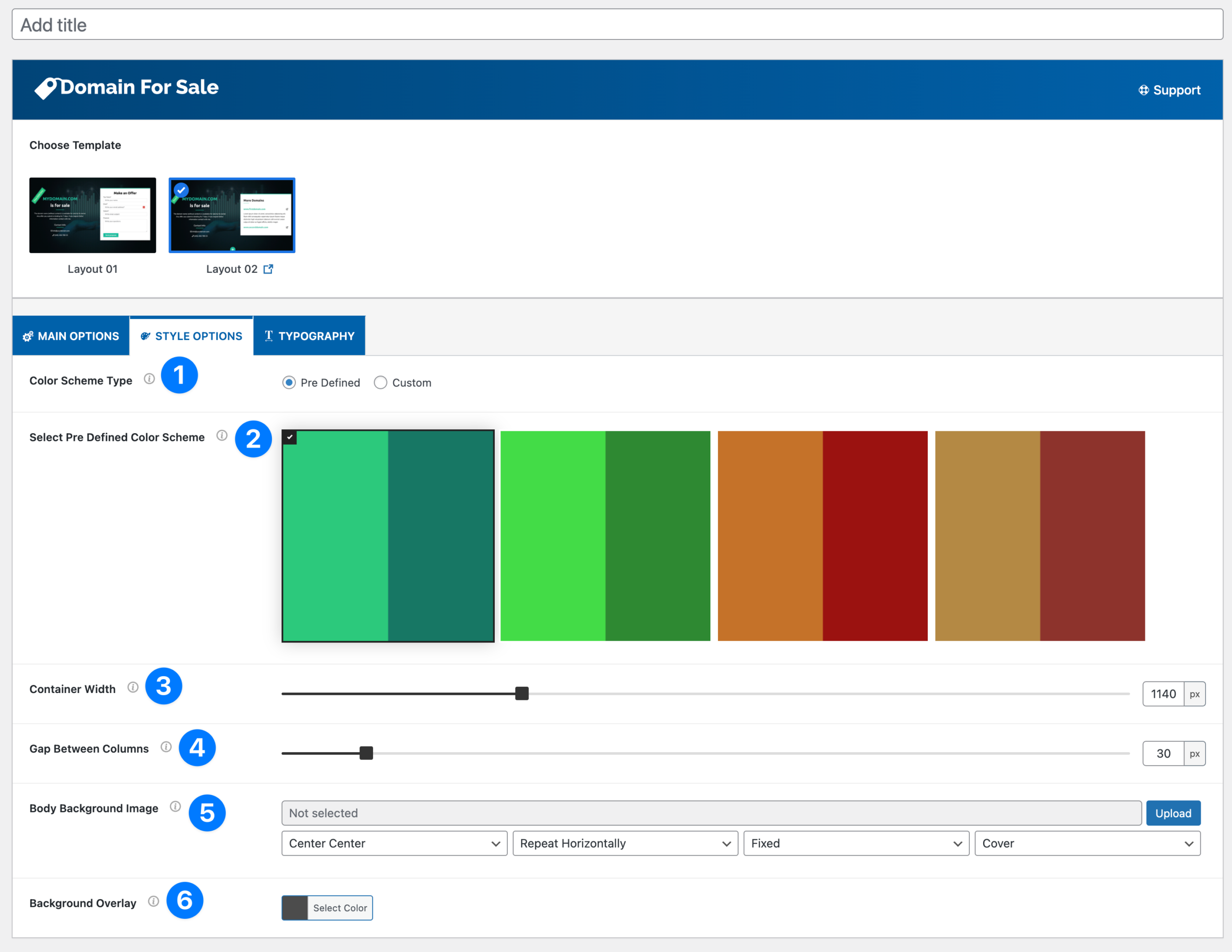
- Color Scheme Type: Choose how you want to set your color scheme:
- Pre-Defined – Select from ready-made color palettes.
- Custom – Pick your own Primary and Secondary colors using the color picker
- Select Pre-Defined Color Scheme: If you choose Pre-Defined, you’ll see a set of ready-to-use color schemes. Click on a color group to instantly apply it to your layout.
- Container Width: Set the maximum width of your content container. You can drag the slider or enter a pixel value manually (e.g.,
1140px). - Gap Between Columns: Adjust the spacing between content columns. This controls how much white space exists between sections for a balanced layout.
- Body Background Image: Upload a background image for your domain sales page. Options include:
- Position (e.g., Center, Top Left)
- Repeat (No Repeat, Repeat Horizontally, Repeat Vertically)
- Attachment (Fixed or Scroll)
- Size (Cover, Contain, Custom)
- Background Overlay: Add an overlay color on top of your background image to improve contrast and readability. Choose the overlay color using the color picker.
Typography #
The Typography Options tab allows you to fully customize the fonts, sizes, styles, and colors for different text elements of your Domain Layout. This ensures your sales page matches your brand and remains easy to read across devices.
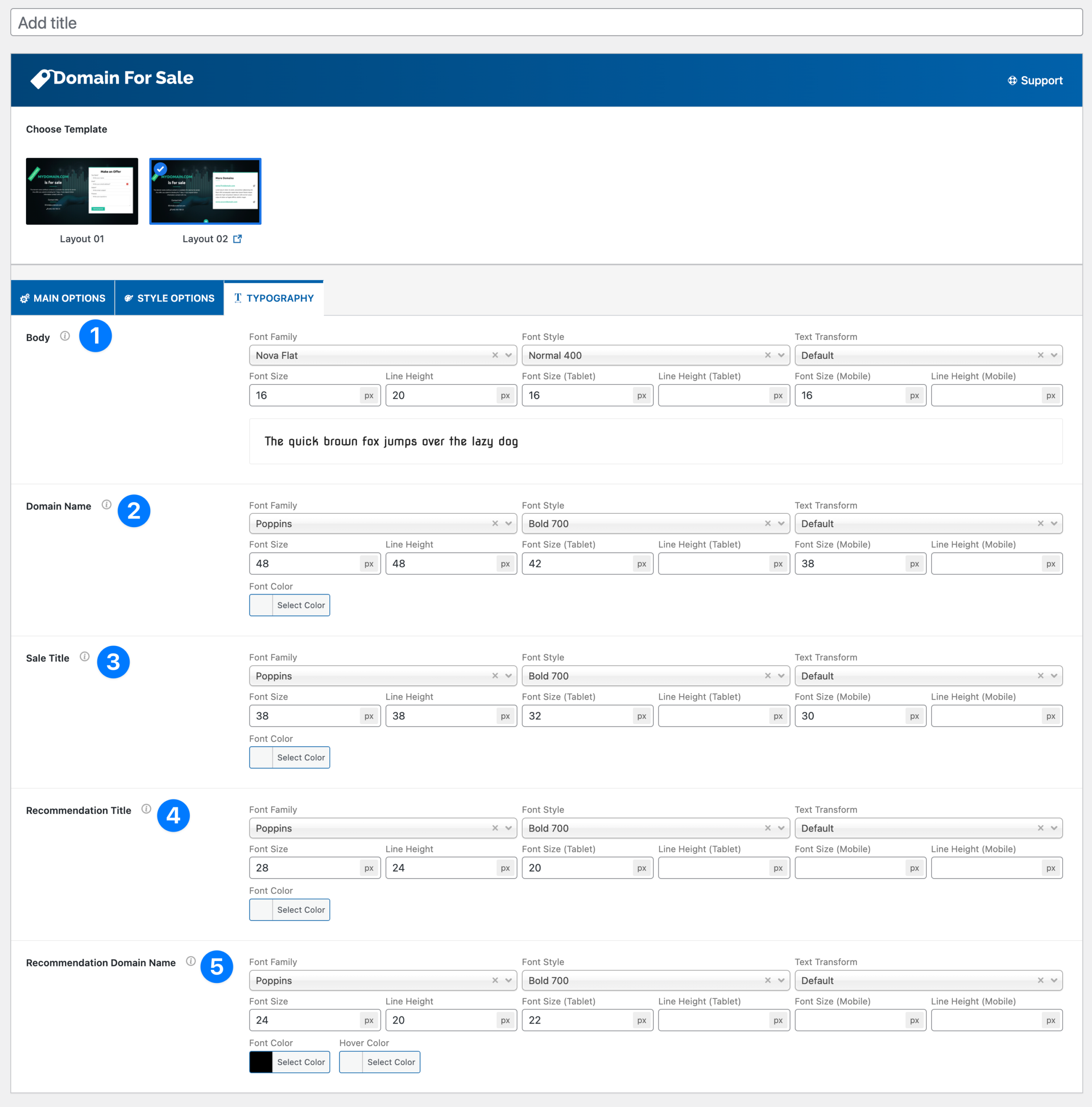
- Body: Controls the default font for the body text of your layout.
- Font Family – Choose from available fonts.
- Font Style – Normal, Bold, Italic, etc.
- Text Transform – Default, Uppercase, Lowercase, Capitalize.
- Font Size & Line Height – Define for desktop, tablet, and mobile individually.
- Preview – Shows sample text in your selected style.
- Domain Name: Controls the appearance of your main domain name (the one for sale).
- Typically set to larger, bold text for maximum visibility.
- Customizable across devices (desktop, tablet, mobile).
- Includes font color picker.
- Sale Title: Controls the styling of the sale title text (e.g., “is for sale”).
- Usually slightly smaller than the Domain Name.
- Full customization for font family, weight, size, line height, and color.
- Recommendation Title (Layout 02 only): Controls the heading for the “More Domains” section in Layout 02.
- Example: “More Domains for Sale”.
- Customizable font size, line height, style, and color.
- Recommendation Domain Name (Layout 02 only): Controls the font styling for additional recommended domains shown in Layout 02.
- Font Family, Style, and Transform options.
- Sizes for desktop, tablet, and mobile.
- Font Color & Hover Color – lets you define the default and hover states for clickable domain names.


