


💬 Offer Form #
The Offer Form tab allows you to configure and customize the form buyers use to submit offers for your domains.
This section controls the labels, placeholders, button text, and spam protection (via reCAPTCHA) — ensuring your submission process is clear and secure.
Field Labels & Placeholders #
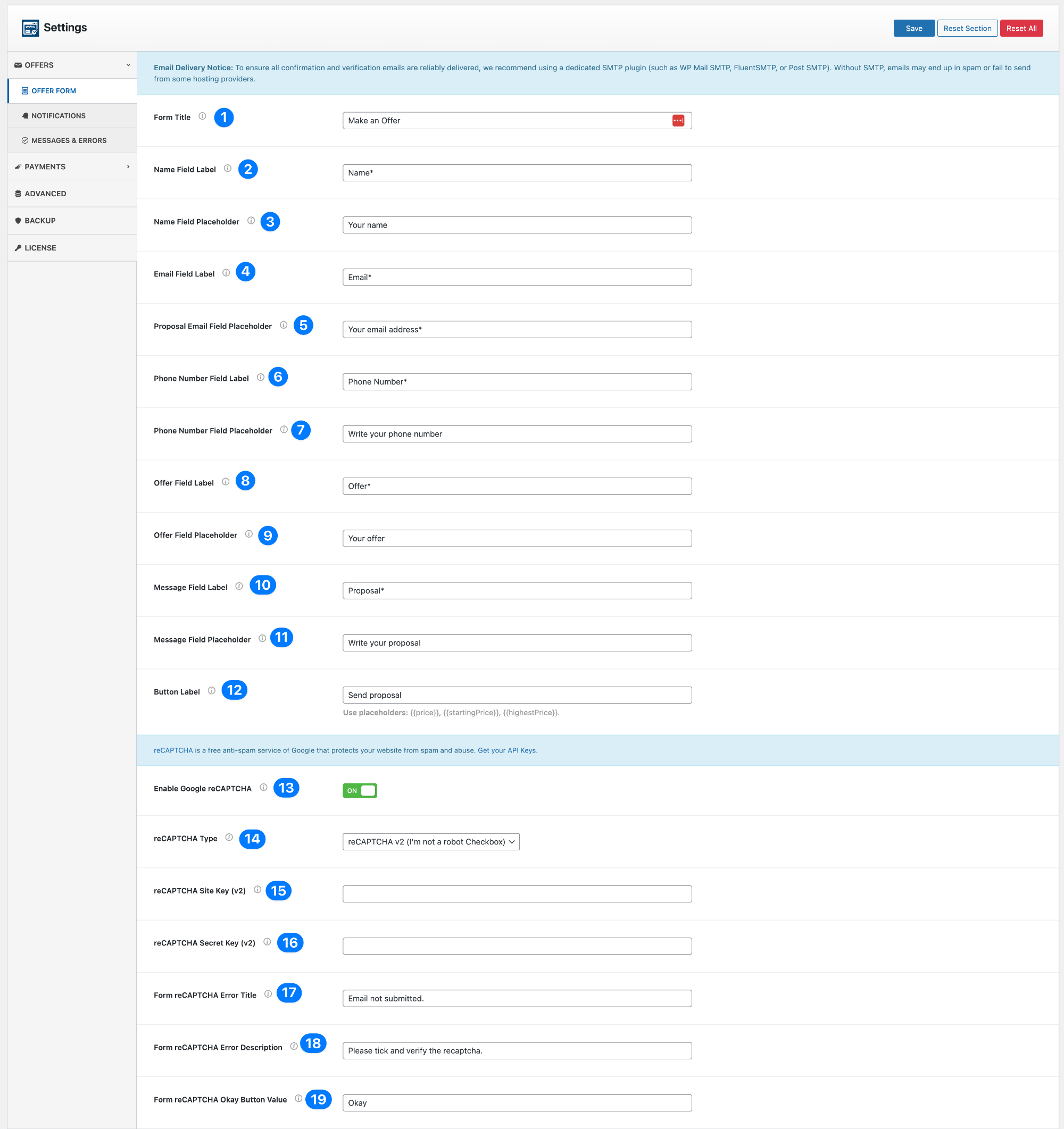
- Form Title: Defines the title displayed at the top of the offer form (e.g., Make an Offer or Submit Your Bid).
- Keep it clear and action-driven to encourage users to engage.
- Name Field Label: Label for the Name input field (e.g., Name*).
- Name Field Placeholder: Placeholder text inside the Name field (e.g., Your name).
- Email Field Label: Label for the Email input field (e.g., Email*).
- Email Field Placeholder: Placeholder text for the Email field (e.g., Your email address*).
- Phone Number Field Label: Label for the Phone Number input field (e.g., Phone Number*).
- Phone Number Field Placeholder: Placeholder text inside the Phone Number field (e.g., Your phone number).
- Offer Field Label: Label for the Offer Amount input field (e.g., Offer*).
- Offer Field Placeholder: Placeholder text inside the Offer field (e.g., Your offer).
- Message Field Label: Label for the Proposal/Message field (e.g., Proposal*).
- Message Field Placeholder: Placeholder text inside the Message/Proposal field (e.g., Write your proposal).
- Button Label: Text displayed on the form submission button (e.g., Send proposal). You can use dynamic placeholders such as
{price},{startingPrice}, and{highestPrice}for more context-driven buttons.
Spam Protection with Google reCAPTCHA #
- Enable Google reCAPTCHA: Toggle ON/OFF to protect your form against spam submissions.
- reCAPTCHA Type: Select the type of Google reCAPTCHA:
- reCAPTCHA v2 – “I’m not a robot” checkbox.
- reCAPTCHA v3 – Invisible verification running in the background.
- reCAPTCHA Site Key (v2/v3): Enter your Google reCAPTCHA Site Key.
- If you choose v3, a separate field for Site Key (v3) will appear.
- reCAPTCHA Secret Key (v2/v3): Enter your Google reCAPTCHA Secret Key.
- If you choose v3, a separate field for Secret Key (v3) will appear.
reCAPTCHA Form Messages #
- Form reCAPTCHA Error Title: The message shown when reCAPTCHA fails (e.g., Email not submitted).
- Form reCAPTCHA Error Description: A longer description shown with the error (e.g., Please tick and verify the reCAPTCHA).
- Form reCAPTCHA Okay Button Value: The button text shown in the error popup (e.g., Okay).
✅ This tab ensures your form fields are user-friendly while keeping your site secure from bots and spam.
Notifications #
The Notifications tab lets you control how the plugin handles email communication. There are two sections:
- Admin Notifications – alerts site owners when a new offer is submitted.
- Bidder Confirmation & Verification – automatically responds to buyers and verifies their email addresses.
Admin Notifications #
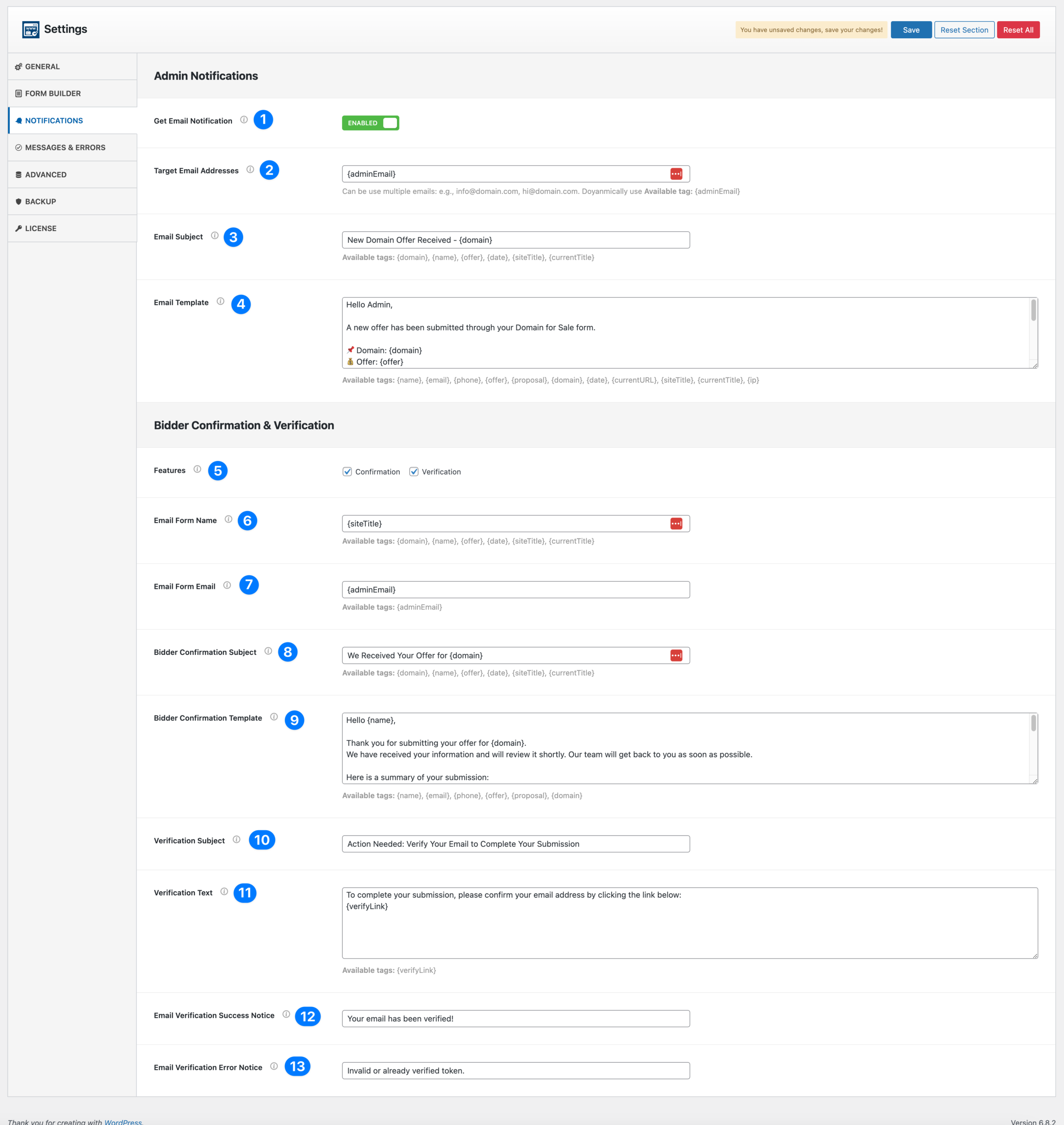
- Get Email Notification: Toggle ON/OFF to enable email alerts for admins when a new offer is submitted.
- Target Email Addresses: Enter the email addresses where admin notifications should be sent.
- Multiple emails are supported (comma-separated).
- You can also use the tag
{adminEmail}.
- Email Subject: Set the subject line of the notification email.
- Example: New Domain Offer Received – {domain}.
- Email Template: Customize the body of the admin email.
- You can use available tags like
{name},{email},{phone},{offer},{proposal},{domain},{date},{currentURL}.
- You can use available tags like
Bidder Confirmation & Verification #
- Features: Choose whether to enable:
- Confirmation – sends an auto-reply email to the bidder after submitting an offer.
- Verification – requires the bidder to verify their email before the offer is accepted.
- 🔑 Conditional Behavior:
- If Confirmation is not checked → the Bidder Confirmation Subject and Template fields will be hidden, and bidders will not receive a confirmation email.
- If Verification is not checked → the verification fields will be hidden, and the admin will not see a “Resend Verification” button in the offer list.
- If both are unchecked → no bidder emails will be sent, and all related fields will be hidden.
- Email From Name: Set the “From” name in bidder emails (e.g., Domain For Sale Team).
- Email From Email: Set the email address that bidder confirmations and verifications are sent from. You can use
{adminEmail}. - Bidder Confirmation Subject: Set the subject line of the confirmation email (e.g., We Received Your Offer for {domain}).
- Hidden if Confirmation is not enabled.
- Bidder Confirmation Template: Customize the confirmation message.
- Example: thanking the bidder and summarizing their submission.
- Hidden if Confirmation is not enabled.
- Verification Subject: Set the subject of the verification email (e.g., Action Needed: Verify Your Email to Complete Your Submission).
- Hidden if Verification is not enabled.
- Verification Text: Message body for the verification email, including the
{verifyLink}tag.- Example: Click the link below to confirm your email.
- Hidden if Verification is not enabled.
- Email Verification Success Notice: Message shown when a bidder successfully verifies their email (e.g., Your email has been verified!).
- Email Verification Error Notice: Message shown when verification fails (e.g., Invalid or already verified token.).
✅ With Notifications configured, you ensure both the admin and bidders receive the right emails at the right time.
Messages & Errors #
The Messages & Errors tab lets you customize the success and error messages shown to visitors after they submit a domain offer. This helps improve communication with bidders and ensures they understand whether their submission was successful.
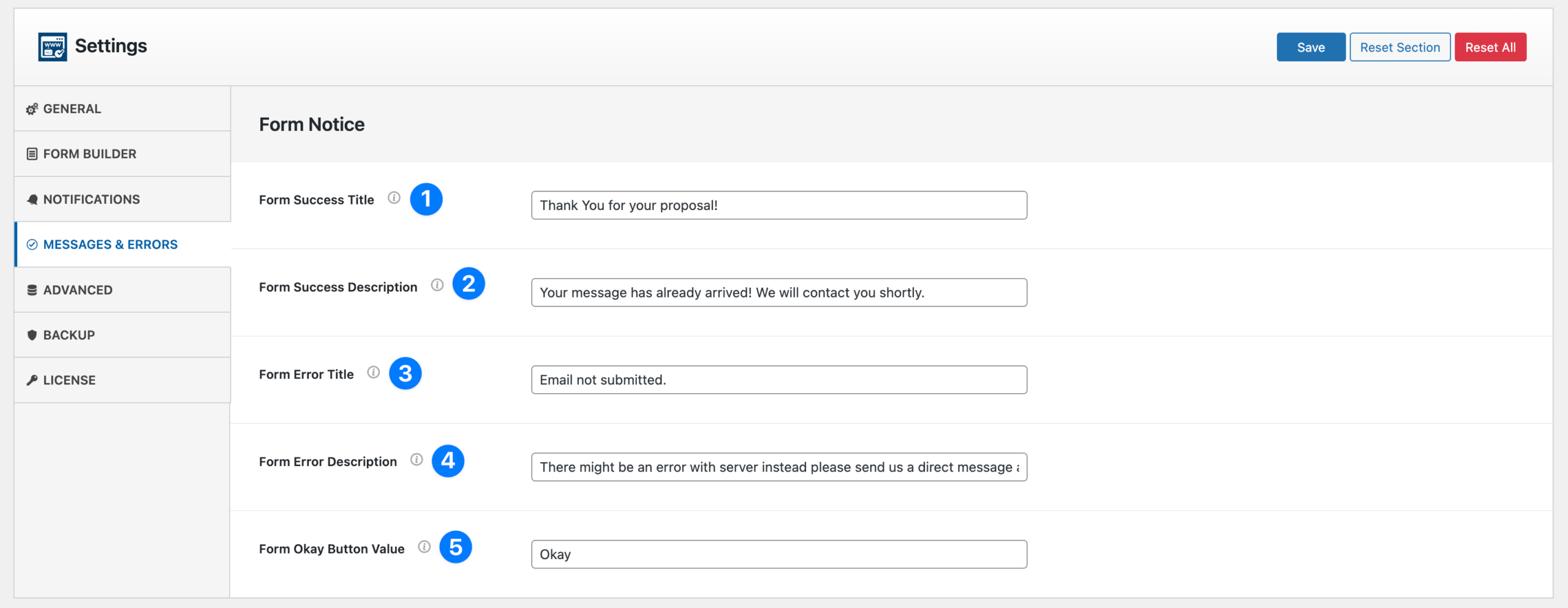
- Form Success Title: The main title shown when an offer is successfully submitted.
- Example: “Thank you for your proposal!”.
- Form Success Description: A longer confirmation message displayed under the title.
- Example: “Your message has already arrived! We will contact you shortly.”.
- Form Error Title: The title shown if the form submission fails.
- Example: “Email not submitted.”.
- Form Error Description: A detailed explanation of the error, giving users instructions on what to do next.
- Example: “There might be an error with the server. Please send us a direct message.”.
- Form Okay Button Value: The button text on the popup that appears with error/success messages.
- Example: “Okay”, “Close”, or “Got it”.
✅ This section ensures your messaging feels professional and user-friendly, even when something goes wrong.


