



The Offers section is where all domain purchase proposals are collected.
This is one of the most essential features of the Domain For Sale plugin, giving admins the ability to review, verify, invite, filter, and manage offers efficiently.
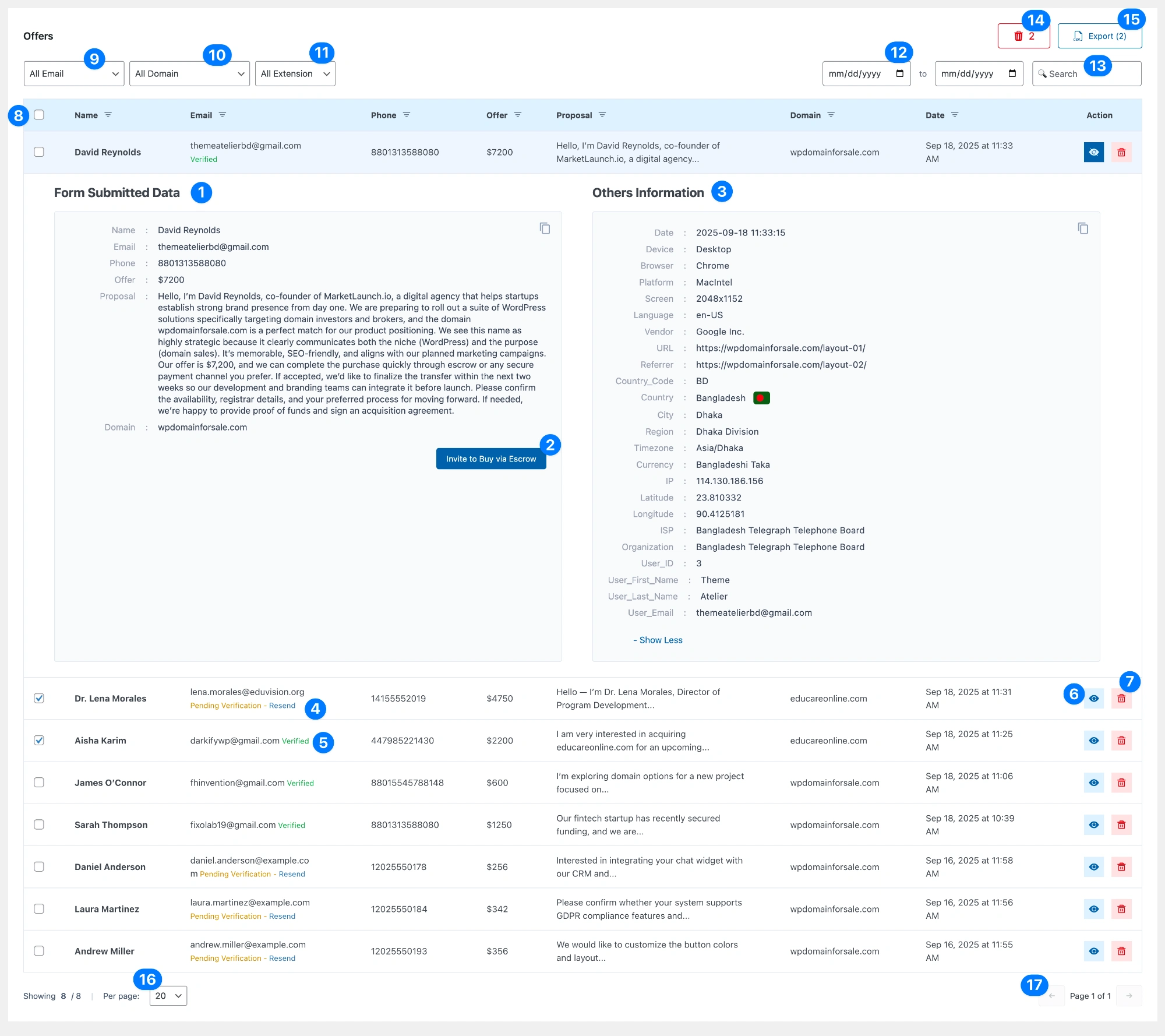
- Form Submitted Data: This area displays the core details submitted by the buyer, including:
- Name
- Phone
- Offer amount
- Proposal message
- Domain (auto-populated from the listing where the offer was submitted).
📩 If the Escrow.com payment gateway is enabled, you’ll also see an “Invite to Buy via Escrow” button here.
Clicking this button sends the buyer an email invitation with a secure payment link to complete their purchase directly through Escrow.com.
- Invite to Buy via Escrow (New):
- Available only when Escrow.com integration is active under plugin settings.
- Sends an automated email invitation to the buyer.
- The buyer receives a secure Escrow.com payment link to proceed with domain purchase.
- Great for converting verified offers into real transactions quickly and safely.
- Others Information: Admins can view detailed technical and contextual information about the buyer, such as:
- Submission date & time
- Device, Browser, Platform, Screen resolution, Language
- Referrer URL and Vendor
- Country, Region, City, Timezone, IP, ISP
- If the user is logged in to WordPress, you’ll also see User ID, First Name, Last Name, and Email.
- Pending Verification: If the buyer hasn’t verified their email yet, you’ll see a Pending Verification label along with a Resend option to send them another confirmation email.
- Verified: When a bidder has verified their email, a green Verified status will appear next to their submission.
- Toggle Details: Click the eye icon to expand or collapse an offer’s full details (sections 1 and 2).
- Delete Offer: Click the trash icon to permanently delete an individual offer.
- Offer Head Bar:
- Checkbox: Select all offers on the page.
- Sorting: Click on the icons beside each column label (Name, Email, Offer, Domain, Date) to reorder.
- All Email Filter: Filter offers by All, Verified, or Pending Verification statuses.
- Domain Filter: Filter offers by a specific domain name (e.g.,
beststartup.com,yourdomain.com). - Extension Filter: Filter offers by domain extension (e.g.,
.com,.org,.net,.co.uk). - Date Filter: Search offers by date range (From → To).
- Search Bar: Quickly search across Name, Email, Phone, Proposal, or Domain fields.
- Bulk Delete: Delete multiple selected offers in one click — useful for cleaning spam submissions.
- Export CSV: Export offers in CSV format.
- By default, all offers are included.
- If specific offers are selected, only those will be exported.
- Per Page: Choose how many offers to display per page (10, 20, 50, etc.).
- Pagination: Move between pages when you have a large number of offers.


