


The Transactions tab allows you to monitor and manage all your active and completed domain sales directly from the WordPress admin panel — without needing to log in to your Escrow.com account repeatedly.
This feature integrates securely with your connected Escrow.com account, automatically fetching and displaying your transaction data in real-time.
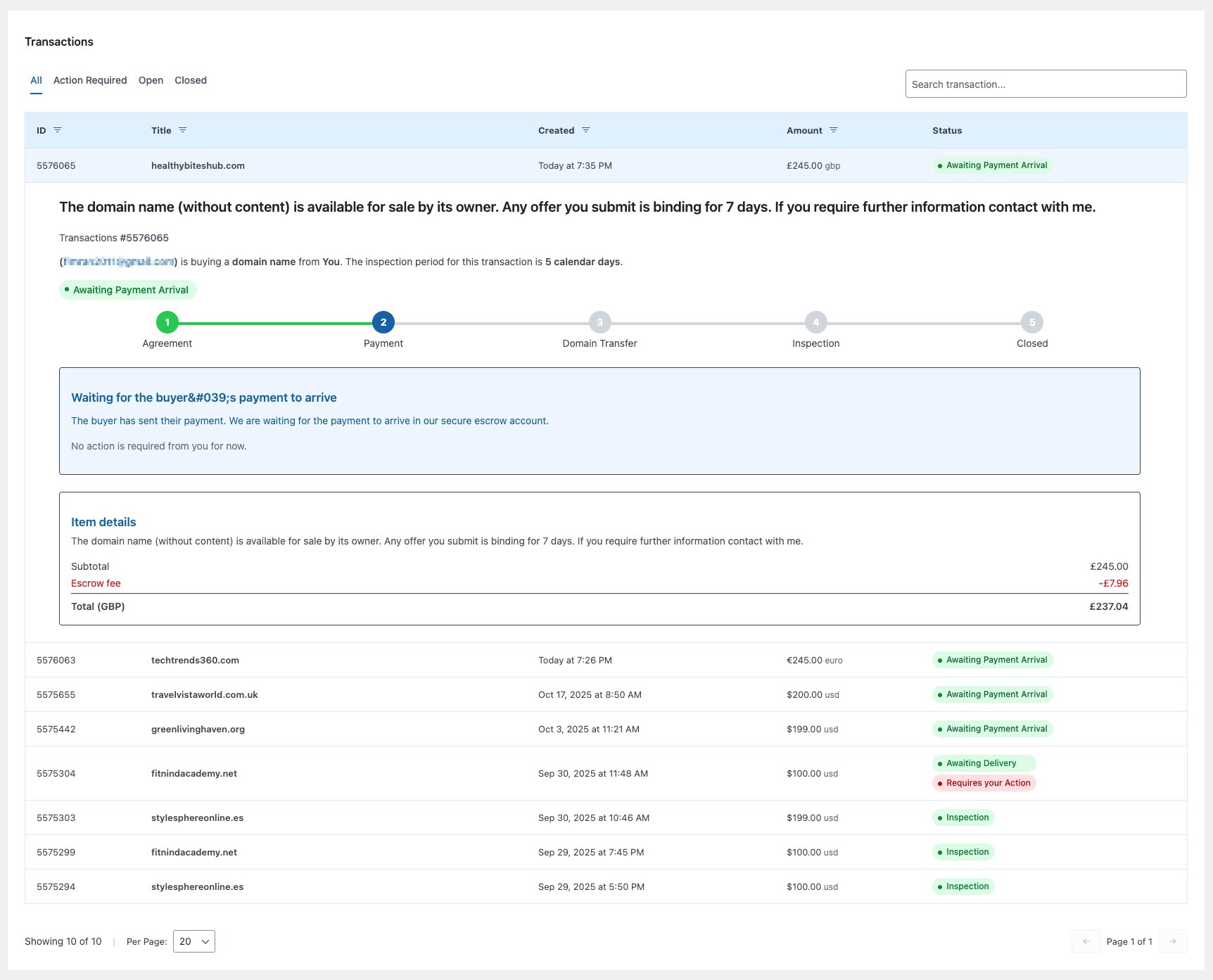
Overview #
Each transaction entry includes key information such as:
- ID – The unique Escrow.com transaction ID.
- Title – The domain name involved in the sale.
- Created – The date and time the transaction was created.
- Amount – The total transaction amount (in your account’s currency).
- Status – Current transaction stage (e.g., Awaiting Payment Arrival, Awaiting Delivery, Inspection, Closed).
Transaction Details View #
When you click on a transaction, detailed information will appear below, including:
- Transaction Summary
- Displays the domain name, transaction ID, buyer’s email, total amount, and inspection period.
- Shows a clear status tracker with the five Escrow process stages:
- Agreement
- Payment
- Domain Transfer
- Inspection
- Closed
- Status Tracker Bar
- Highlights the current phase of your transaction.
- Color-coded for clarity (e.g., green for Awaiting Payment Arrival, orange for Requires Your Action, gray for completed steps).
- Payment Status Box
- Shows messages like:
- “Waiting for the buyer’s payment to arrive.”
- “Payment has been received and is under inspection.”
- Keeps you informed about whether any action is required on your part.
- Shows messages like:
- Item Details Section
- Lists itemized information including:
- Subtotal (domain sale amount)
- Escrow fee
- Final total (after deductions)
- Lists itemized information including:
- Transaction Table (Below)
- Displays all transactions with status indicators for quick access.
- Common statuses include:
- ✅ Awaiting Payment Arrival – Buyer has initiated payment.
- 📦 Awaiting Delivery – Awaiting domain transfer from seller.
- 🕓 Inspection – Buyer is reviewing the domain after transfer.
- 🔒 Closed – Transaction completed successfully.
- ⚠️ Requires Your Action – Seller needs to perform a pending step (e.g., domain transfer).
Filters and Navigation #
- All / Action Required / Open / Closed Tabs – Quickly switch between transaction types.
- Search Bar – Search by transaction ID, domain name, or buyer email.
- Pagination & Per Page Control – Easily navigate through multiple pages of transactions.
Why This Matters #
The Transactions page makes it easy to:
- View all domain sales handled via Escrow.com in one central location.
- Track buyer payments and transfer progress without leaving WordPress.
- Save time by eliminating frequent Escrow.com logins.
- Maintain transparency for accounting and reporting purposes.
💼 Admin Workflow Example #
Here’s a typical workflow for managing transactions efficiently:
- Check for New or Pending Transactions
- Go to Domain for Sale → Transactions and review the latest entries.
- Focus first on items marked Requires Your Action or Awaiting Delivery.
- Resend Payment Confirmation (if delayed)
- If a buyer’s payment is pending longer than expected, verify on Escrow.com or contact the buyer if necessary.
- Complete Domain Transfer
- Once payment is confirmed, initiate domain transfer from your registrar.
- Update the transaction to reflect delivery (Escrow.com updates this automatically).
- Monitor Inspection Period
- Allow the buyer’s inspection period to complete (typically 3–7 days).
- If any issues arise, coordinate directly through Escrow.com.
- Verify Closure
- Once the inspection is complete and Escrow releases funds, the transaction will automatically move to Closed.
✅ Tip: Always verify that your Escrow.com API credentials are correctly configured in
Domain for Sale → Settings → Payments to ensure transactions sync automatically.


