


You can add a Make an Offer form to a domain landing page in WordPress using the free Domain For Sale plugin — the offer and inquiry form is a core free feature, not a paid upgrade. The plugin configuration itself takes only a few minutes when WordPress is installed, the domain is connected, the landing page exists or is being created, and email delivery works.
Offer-based selling is useful when you don’t want to commit to one public price; a fixed price can still be the better choice for buyers who want certainty. This guide covers both sides of that decision, then walks through the seven setup steps — including how to use a starting-price control to discourage extremely low offers where the plugin supports it.
Table of Contents
Key Takeaways
- The free Domain For Sale plugin includes a built-in buyer offer and inquiry form — no Pro upgrade is needed for offer-based selling.
- A fixed price gives buyers clarity and speeds decisions, while Make an Offer gives the seller more pricing flexibility.
- A starting-price threshold can discourage extremely low submissions where the current plugin supports it.
- Submitted offers are stored and reviewed in the WordPress offer-management area, not just in email.
- Email notifications should be tested with a real submission before the landing page is promoted.
- An accepted offer still needs a secure payment and domain-transfer process — the form starts the conversation, it doesn’t close the deal.
Fixed Price vs. Make an Offer: Which Is Better for Your Domain?
Neither mode is universally better — they solve different problems. Decide before you configure anything.
When a Fixed Price Works
Publish a price when you have a clear valuation supported by comparable sales, the domain targets price-sensitive small businesses, and you want faster decisions with fewer exploratory inquiries. The trade-offs: price too high and buyers leave silently; price too low and you leave money on the table; either way, you learn less about actual demand than an offer form would tell you.
When Make an Offer Works
Invite offers when retail value is genuinely uncertain, the name could appeal to buyers with very different budgets, or comparable sales don’t give a clear answer. Offers start conversations, support price discovery, and avoid anchoring a distinctive domain too low. The costs: more low offers, more negotiation, more administrative work — and an offer amount tells you nothing about whether the buyer can actually complete the purchase.
Side by Side
| Factor | Fixed price | Make an Offer |
|---|---|---|
| Buyer clarity | High — the number is public | Lower — buyer must engage first |
| Negotiation required | Little to none | Usually expected |
| Price discovery | None — you set the ceiling | Offers reveal market interest |
| Risk of pricing too low | Real — the price caps the deal | Lower — nothing is anchored publicly |
| Low-quality inquiries | Fewer | More, unless a threshold filters them |
| Speed of agreement | Faster when the price fits | Slower — conversation first |
| Best suited to | Clearly valued, comparable-backed names | Distinctive names with uncertain value |
| Seller workload | Low | Higher |
The Hybrid Option: Show Guidance Without Publishing a Final Price
There’s a middle path: invite offers while displaying a starting price or offer tag. It tells buyers you’re open to negotiation, the domain isn’t priced at registration-fee level, and the conversation should begin above a stated amount — without committing you to that amount as the final price.
Keep the terminology straight. A starting price tells the buyer where negotiation should begin. A minimum offer prevents or discourages submissions below a threshold. An asking price is your public target, and a reserve price belongs to auctions — don’t mix these up when writing your page copy.
Adding a Make an Offer Form to Your Domain Landing Page
The seven steps below use the free Domain For Sale plugin by ThemeAtelier. Version 3.5.0 introduced a redesigned admin interface, so labels are noted for verification against the live plugin.
Step 1: Install and Activate Domain For Sale
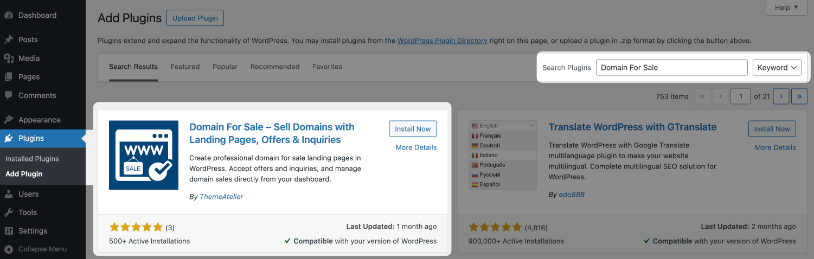
In your WordPress dashboard, go to Plugins → Add New Plugin and search for Domain For Sale. Find the plugin by ThemeAtelier, click Install Now, then Activate. You can also download the ZIP from the plugin page on WordPress.org and upload it via Plugins → Add New Plugin → Upload Plugin. The offer form is included free — you don’t need Pro for this tutorial.
Step 2: Create or Edit the Domain Landing Page
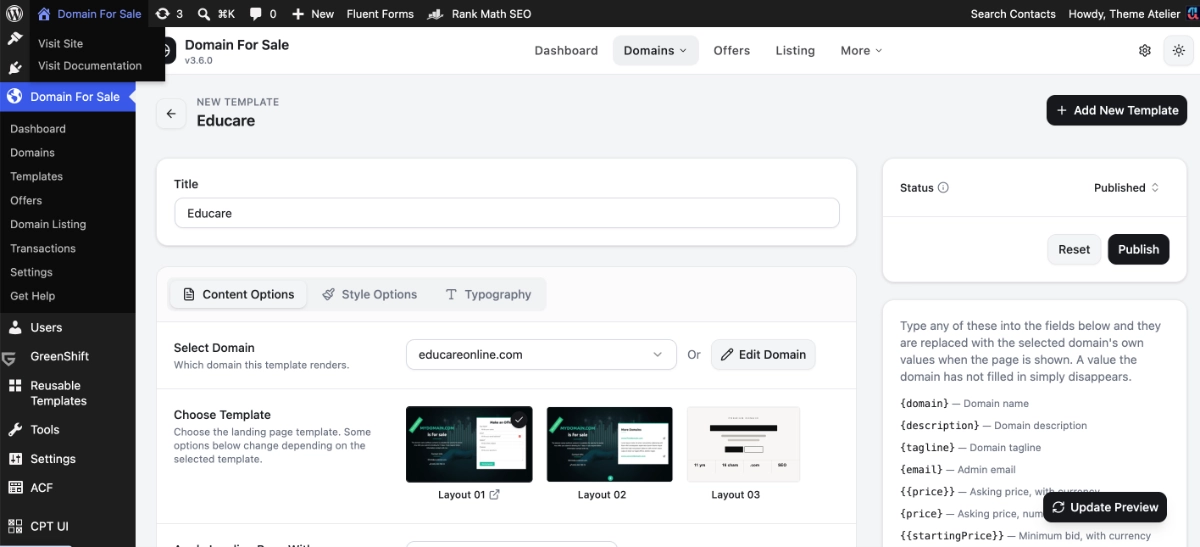
Go to Domain For Sale → Templates and either open the default layout the plugin created on activation or add a new domain. Enter the exact domain name (check the spelling — a typo here is easy to miss), choose a landing-page layout, and confirm how the page will display: theme replacement for a whole-domain sales page, or a shortcode or block placement inside an existing page.
Step 3: Change the Pricing Mode to Make an Offer
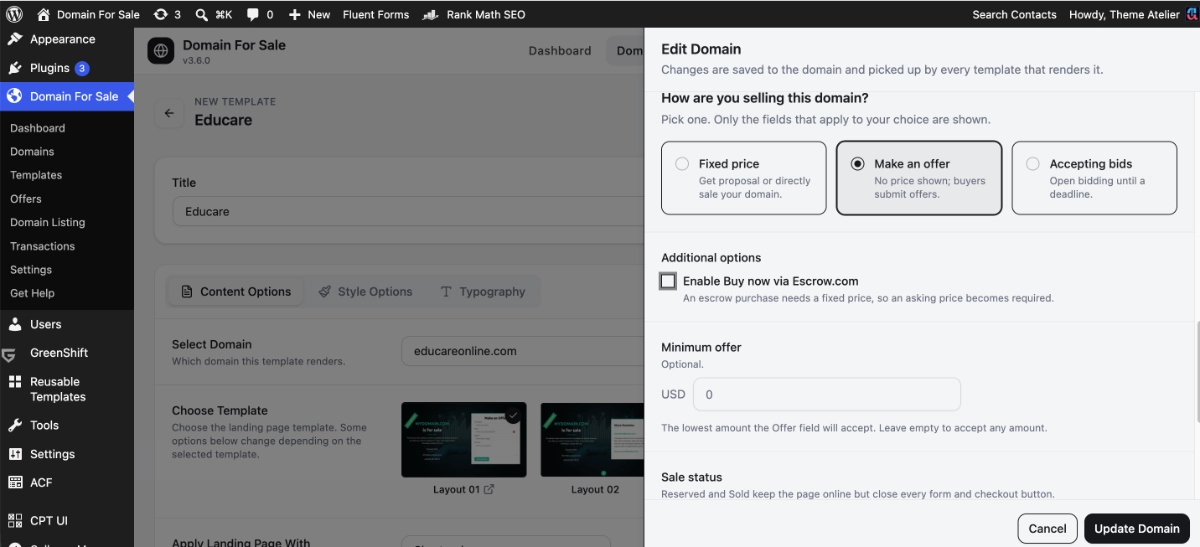
In the domain’s pricing settings, find the pricing or proposal option and switch it from Fixed Price to Make an Offers. Selecting Receive Offers shows the offer-based controls and hides the fixed-sale-price field where applicable. This one setting is what turns your page from a price tag into a negotiation invitation.
Step 4: Set the Starting Price or Minimum Offer
With Receive Offers selected, set the Starting Price — the plugin’s term, so we’ll use it rather than renaming it. Choose it as a conversation floor, not a final price: low enough that a serious buyer can reasonably begin, high enough that casual “would you take $50” submissions are discouraged. Base it on domain quality, plausible end users, comparable sales, and your minimum acceptable economics — there’s no universal percentage formula.
An illustrative example, not a pricing formula: a seller hoping for $5,000 might display a $2,500 starting point and negotiate the final price separately.
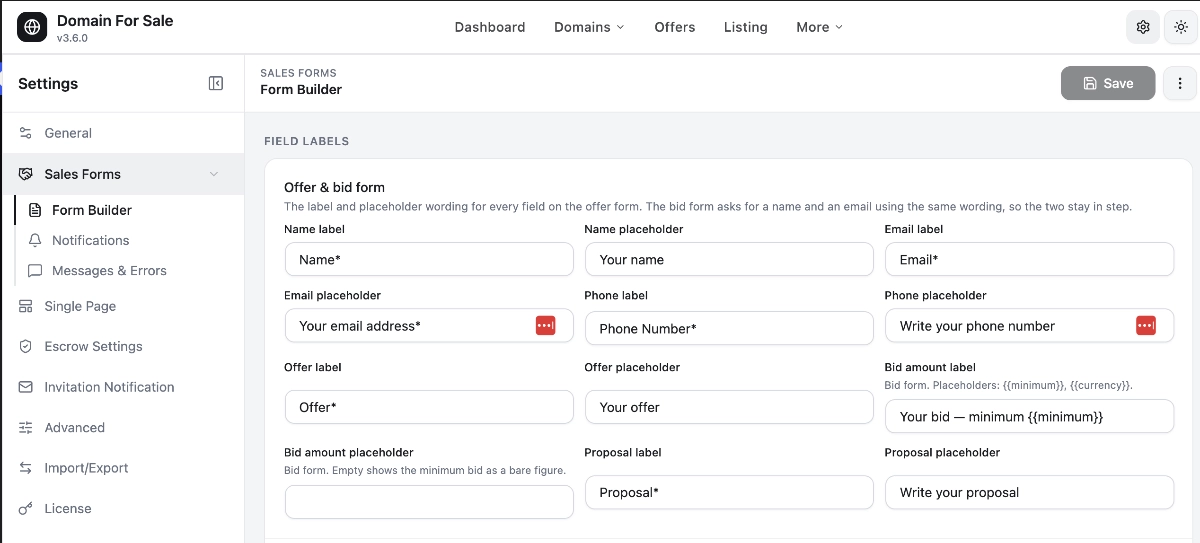
Step 5: Configure the Offer Form Fields
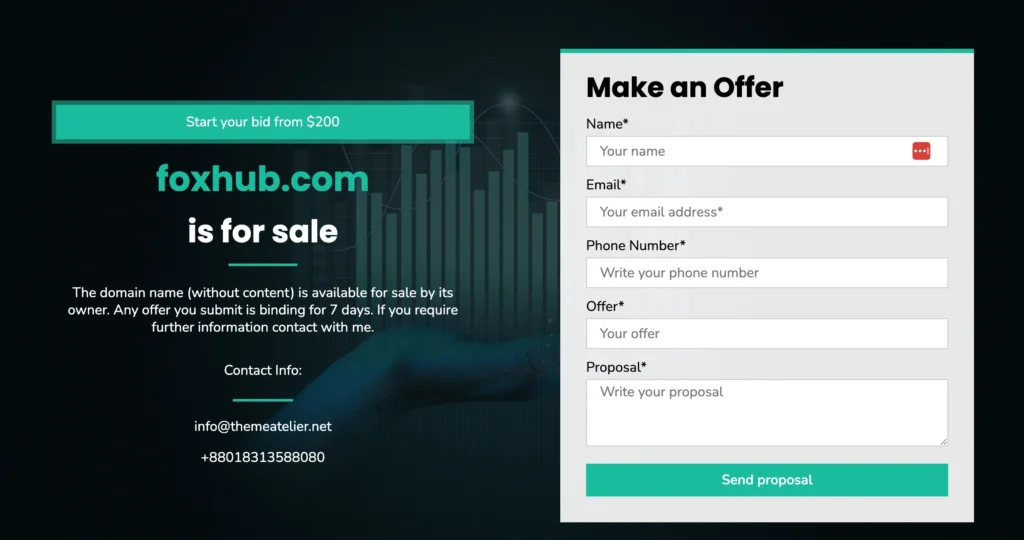
The built-in form collects the buyer’s name, email, phone number, offer amount, and a message, tied to the domain being viewed. Review which fields you actually need — every extra required field is a reason for a busy buyer to abandon the form. Check the current settings for which fields can be enabled, relabeled, or made required before promising yourself a particular layout. Spam protection via Google reCAPTCHA is part of the Pro tier.
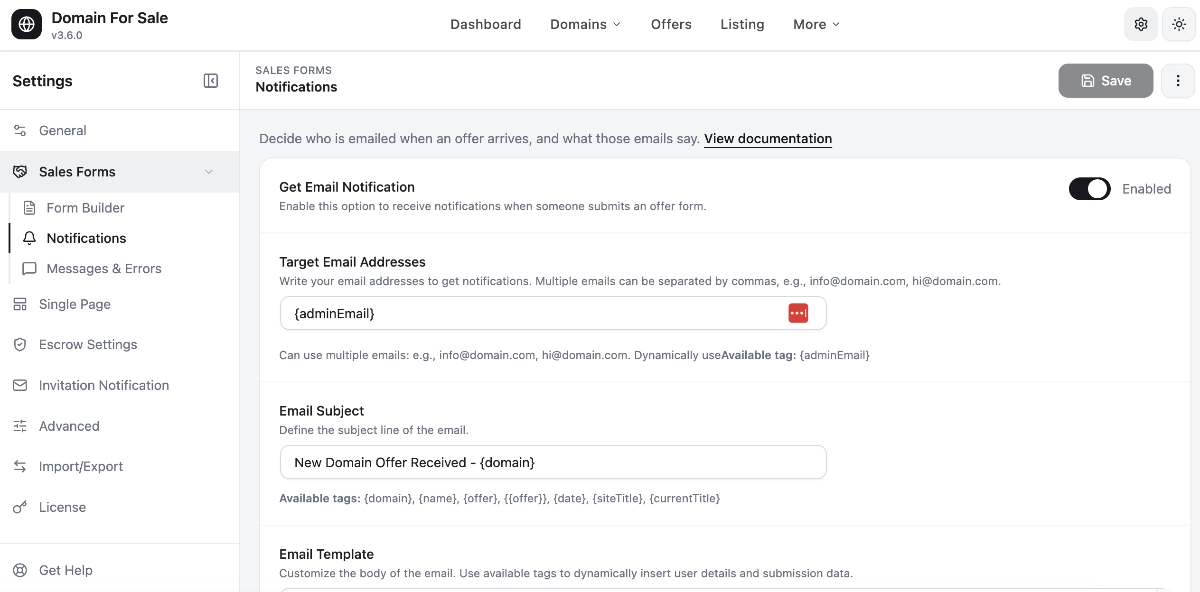
Step 6: Configure Notifications and Confirmation Emails
Two emails matter: the notification you receive when an offer arrives, and the confirmation the buyer may receive after submitting. Open Settings → Offers, confirm notifications are enabled, and check the target email address — by default it’s your WordPress admin email, which must be an address you actually monitor. Review the subject line, message template, dynamic tags, and the buyer confirmation setting. An unmonitored inbox is the most expensive misconfiguration on this page.
Step 7: Preview, Publish and Submit a Test Offer
Publish the layout, then test like a buyer would. Open the page in a private browser window and work through this checklist with fictional buyer details:
- Check the domain spelling everywhere it appears.
- Confirm Make an Offer is displayed with the starting-price message.
- Test every required field, then submit an offer above the threshold.
- Try a below-threshold submission if the plugin is expected to block it.
- Confirm the success message appears and the offer shows up in WordPress.
- Confirm the admin notification and buyer confirmation emails both arrive (check spam).
- Test on a real mobile device, then re-check after clearing WordPress, hosting, and CDN caches.
What Happens When a Domain Offer Arrives?
The Offer Is Stored in WordPress
Each submission is saved in Domain For Sale → Offers with the domain, buyer name, email, phone, proposed amount, message, and date. Pro adds buyer insights such as device, location, and browser details. Treat technical metadata as context, not proof — none of it verifies that an offer is genuine.
The Seller Receives a Notification
The email is an alert, not the source of truth. Open WordPress and review the stored offer directly — emails get filtered, truncated, and occasionally lost, while the dashboard record doesn’t.
Evaluate the Offer
Weigh the amount against your acquisition and renewal costs, the buyer’s apparent use case, the quality and detail of their message, and whether they answer follow-up questions. Consider comparable alternatives, any trademark concerns, and the proposed timeline. A corporate email address is a mildly positive signal, not proof of legitimacy — and there’s no need for intrusive investigation at this stage.
Accept, Decline or Counter
Negotiation typically continues over email or another agreed channel — reply to the buyer, counter, and converge on terms. Nothing in an emailed exchange transfers anything by itself; an agreed number is the start of the closing process, not the end.
Move an Agreed Sale to Secure Checkout or Escrow
Before money moves, confirm in writing: the exact domain, price, currency, who pays fees, the payment process, the transfer method, and any inspection period or included assets. Then close through a secure service. Domain For Sale Pro can display Escrow.com purchase forms and send private Escrow invitations — but Escrow.com handles the transaction and the funds, not the plugin. Never transfer a domain based on an email or a payment screenshot; log in to the escrow account directly and verify. How to Accept Domain Payments Securely With Escrow.com in WordPress
How to Get Better-Quality Domain Offers
Set a Meaningful Starting Point
The threshold should discourage obviously unserious offers without scaring off reasonable negotiations. If every inquiry you receive is far below your floor, the starting point is doing no work.
Write a Specific Headline
“This domain may be for sale” is weak. “BrightNest.com is available for acquisition” is better — it’s definite, and it names the asset. A clearer headline won’t guarantee more offers, but a vague one reliably invites vague inquiries.
Explain the Domain Briefly
Two sentences on defensible qualities: easy spelling, memorable wording, the commercial category, suitable brand uses. Skip claims about traffic, revenue, SEO authority, or appraisal value unless you can prove them — sophisticated buyers discount pages that oversell.
Make the Form Easy to Complete
Ask only for what you need to assess and answer an offer. Every additional required field trades inquiry volume for information you probably won’t use.
Respond Promptly and Professionally
Acknowledge legitimate inquiries quickly — buyers often contact several sellers at once. Skip artificial urgency and aggressive tactics; they lose more deals than they close.
Keep the Page Discoverable
Type-in visitors reach the page by entering the domain directly — no search ranking required. Search visitors may also find it when looking up the exact domain or brand phrase, if the page is indexable. Use a descriptive page title, a clear H1, a canonical URL, a mobile-friendly design, fast loading, and — above all — a working form. No rankings are promised by any of this; reachability is the point.
Test Email Delivery Regularly
Submit a fresh test offer after plugin updates, theme changes, hosting migrations, SMTP changes, caching changes, or any form-setting edits. A silently broken form can cost you the one serious buyer the domain gets this year.
Privacy and Spam Considerations
An offer form collects personal information — name, email, phone, message, and technical details such as IP address and device data. Publish an appropriate privacy notice, collect only what you need, protect your WordPress admin access, keep WordPress and plugins updated, and never expose buyer details publicly. Use spam protection where your feature tier provides it, and follow the privacy rules that apply in your jurisdiction. This is general good practice, not legal advice.
Troubleshooting the Make an Offer Form
Why Isn’t the Make an Offer Form Showing?
Check the simple causes first: the pricing mode is still set to Fixed Price, the wrong layout is displayed, a shortcode or block points to a different domain, or changes weren’t saved. Then clear caches and view the page in a private window — caching explains more “missing form” reports than anything else. If it still fails, suspect a theme, page-builder, or minification conflict: disable one candidate at a time, ideally on a staging site, and update the plugin if you’re behind.
Why Am I Not Receiving Offer Emails?
Check spam first, then confirm the notification address and that notifications are enabled. Now the key diagnostic: is the offer stored in WordPress? A stored offer with no email means mail delivery is failing, not that the offer was lost. Test whether WordPress sends any email (a password reset works), and if not, configure a reputable SMTP plugin or transactional email service — many hosts restrict server mail. Ask your host about mail restrictions if SMTP doesn’t resolve it.
Why Can Buyers Submit Offers Below My Starting Price?
It depends on how the current Starting Price control behaves: some implementations enforce a technical minimum, others display a suggested starting point without blocking lower submissions. If it’s display guidance only, treat below-threshold offers as a filtering signal rather than a bug — you’re free to ignore them.
Why Does the Form Look Different From the Preview?
Usually interference: theme styles, page-builder CSS, caching, minification, or custom CSS. Check responsive breakpoints on a real device, rule out browser extensions, and confirm you’re on the current template version. Disable optimization features one at a time until the layout corrects itself, then exclude the sales page from the conflicting feature rather than turning it off site-wide.
Frequently Asked Questions
Should I Put a Price on My Domain or Ask for Offers?
A fixed price works when you have a confident valuation and want clarity and faster decisions. Make an Offer works when value is uncertain, budgets vary widely among plausible buyers, or you’re willing to negotiate for price discovery. The hybrid — Receive Offers plus a visible starting price — signals seriousness without committing to a final number, and suits many sellers best.
How Do I Add an Offer Form to My Domain Website?
Install the free Domain For Sale plugin, create or edit your domain under Domain For Sale → All Domains, switch the pricing mode to Receive Offers, set a starting price, configure the form fields and email notifications, publish the layout, and submit a test offer with fictional details. The full walkthrough above covers each step — the plugin configuration itself takes only a few minutes once WordPress is running.
How Do I Stop Lowball Offers on My Domain?
You can reduce them, not eliminate them. Use a starting price or enforced minimum where the plugin supports it, display clear pricing guidance, require an offer amount, and keep the threshold realistic. Then simply don’t engage with obviously unserious submissions — a lowball you ignore costs you thirty seconds. Filtering is the goal; a perfectly clean inbox isn’t achievable.
What Is a Minimum Offer for a Domain?
It’s the lowest amount you want a buyer to submit as the opening point for negotiation — a conversation floor. It is not necessarily the final sale price, and it isn’t a formal appraisal of the domain’s value. Sellers typically set it high enough to filter casual inquiries and low enough that a serious buyer can comfortably start the discussion.
Is the Domain For Sale Make an Offer Form Free?
Yes. As of the current plugin version (checked July 19, 2026), the free Domain For Sale plugin includes the core offer and inquiry workflow: the buyer form, offer storage in WordPress, admin notifications, and buyer confirmation emails. Pro adds verified advanced capabilities such as Escrow.com purchase forms, private Escrow invitations, reCAPTCHA spam protection, and detailed buyer insights — useful extras, but not required for offer-based selling.
What Should I Do After Accepting a Domain Offer?
Put the terms in writing — exact domain, price, currency, fee responsibility, transfer method — then close through a secure escrow or checkout service rather than direct payment. Confirm the funds are secured by logging into the authenticated service directly, complete the registrar transfer only after that confirmation, and remove the domain from every active listing once the sale completes.
Conclusion
Adding a Make an Offer form to a domain landing page comes down to one free plugin and seven careful steps: install Domain For Sale, set up the domain, switch to Receive Offers, choose a sensible starting price, configure the form and notifications, publish, and test the whole path with a fictional offer. Offer-based selling fits sellers who want flexibility and accept negotiation; fixed pricing fits sellers who want clarity and speed; the starting-price hybrid covers much of the ground between.
Two things to keep doing after launch: re-test the form and emails whenever anything on the site changes, and treat every accepted offer as the start of a secure closing process, not the end of the sale. If you’re starting from scratch, begin with the full landing-page setup guide, then come back here for the offer workflow. How to Set Up a Domain For Sale Landing Page in WordPress For where the offer form fits in a wider strategy, see 10 Best Places to Sell Domain Names in 2026 and our guide on how to sell a domain without paying commission.