

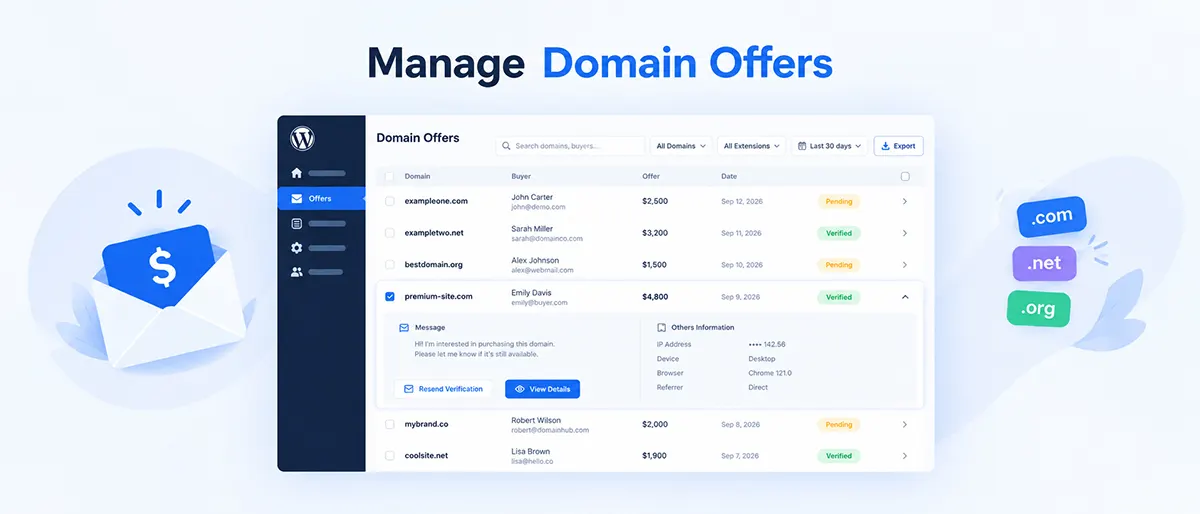

An offer arrives for ExampleOne.com. Two days later, another buyer offers on ExampleTwo.com. A third buyer emails from a different address entirely. Now you’re digging through inbox threads and old notifications trying to remember: who offered what, for which domain, and when?
Learning to manage domain offers in WordPress starts with one place to see them all. Domain For Sale offers are stored in a single WordPress Offers area, where you can review, search, filter, and export submissions. It’s not a full CRM — there’s no deal pipeline or follow-up reminders — but it solves the problem of offers scattered across email threads. Here’s exactly how it works.
wpdomainforsale.com is operated by ThemeAtelier, the developer of Domain For Sale. This tutorial documents the current Offers workflow using the plugin version reviewed at publication time (v3.7.0).
Key Takeaways
- Domain For Sale stores buyer offers in a centralized Offers area inside WordPress, part of the plugin’s React-based admin since v3.5.0.
- Each submission includes the buyer’s contact information, proposed amount, message, domain, and submission context like device and browser.
- Search and filters (by domain, extension, and date range) make it easier to review offers across a multi-domain portfolio.
- Buyer email verification can be enabled before treating a submission as confirmed — it verifies an email address, not the buyer’s identity.
- Offers can be exported as CSV for backup or offline review.
- An accepted offer can move into a separate Escrow.com transaction workflow, tracked on its own Transactions screen.
Table of Contents
How Offers Enter WordPress
A buyer visits your domain’s sales page and, depending on how the domain is configured, submits an offer, an inquiry, or a bid through the on-page form — typically capturing name, email, phone, and a proposal or offer amount. From there, the submission is stored in WordPress, an admin notification fires if enabled, and the buyer may need to verify their email before the offer is treated as confirmed. The result lands in your Offers screen.

Offers Are Not Transactions
This distinction matters before anything else: an offer is a buyer expressing interest or proposing a price — it can sit in your inbox for review with no obligation on either side. A transaction is a sale that has actually progressed into a payment and closing workflow, tracked on Domain For Sale’s separate Transactions screen when Escrow.com is configured. An offer inbox is not a transaction ledger, and receiving an offer is not the same as completing a sale.
Finding and Reading the Offers Screen
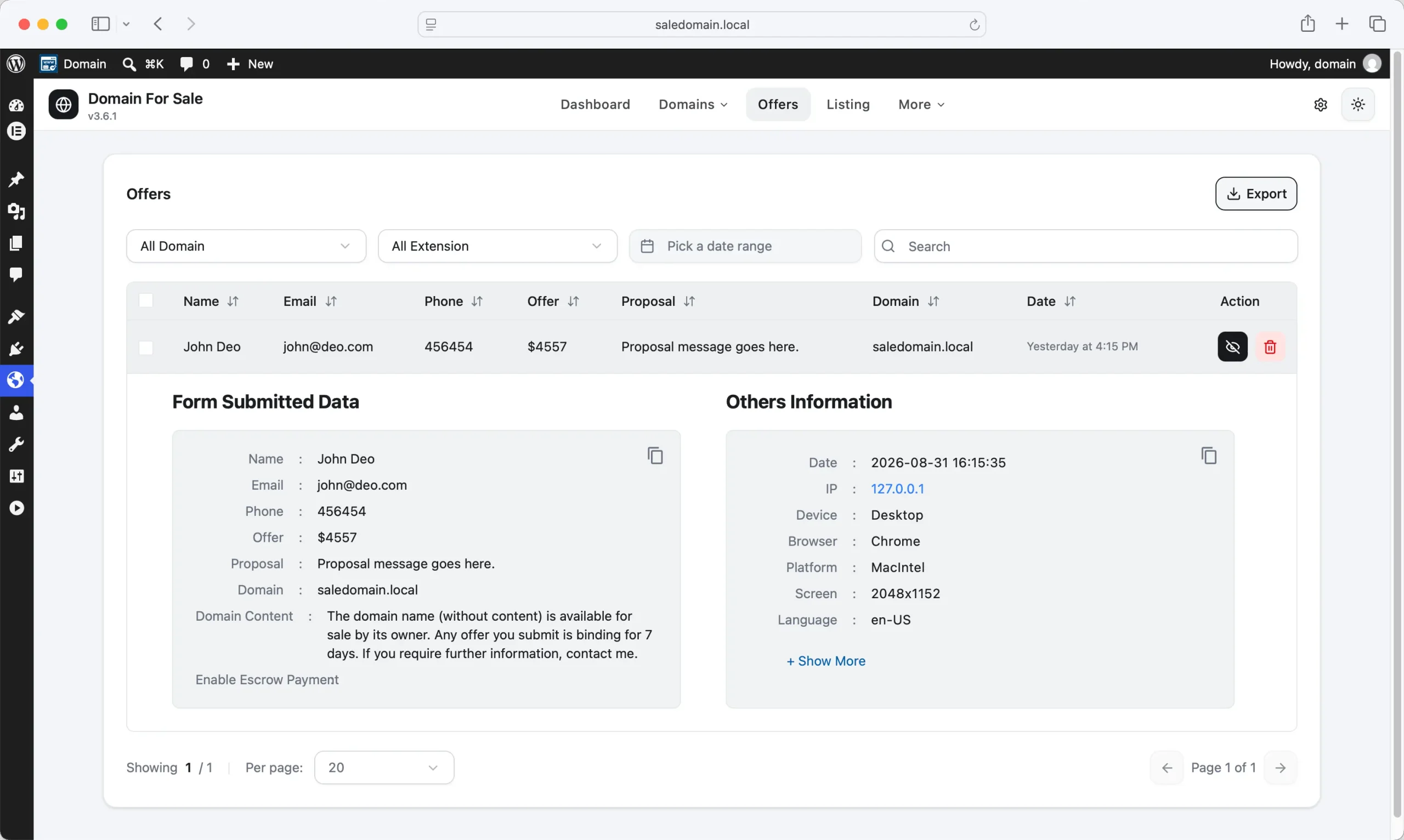
Offers live under Domain For Sale → Offers — part of the React-based admin rebuilt in v3.5.0. Each row in the inbox shows the buyer’s name, email, offer, domain, and submission date, sortable by column, with a checkbox for bulk actions and an eye icon that expands the full submission.
Expanding an offer reveals more than the summary row: the full proposal message, plus submission context including IP address, device, browser, platform, screen resolution, language, and referrer. One current detail worth knowing — as of v3.7.0 (September 2026), offers no longer record the buyer’s approximate country or location, since the free IP-lookup service the plugin relied on discontinued its free tier. If you’re used to seeing a location field, that’s why it’s gone.
Treat this context data as useful background, not identity verification — a device or browser fingerprint tells you nothing about whether a buyer is legitimate or able to pay. And because this screen can collect IP addresses, device details, and contact information, make sure your site’s privacy policy and data-retention practices actually reflect what you’re collecting, subject to applicable law in your jurisdiction.
Searching and Filtering Offers
The Offers screen includes a free-text search bar plus filters for domain, extension, date range, and verification status. That combination covers the situations that actually come up: pull every offer on one domain when several buyers have contacted you about it, filter to recent submissions when you’re catching up after a few days away, or filter by extension across a mixed-TLD portfolio to review your `.com` offers separately from your `.ai` offers.
Notifications, Confirmation, and Verification — Three Different Things
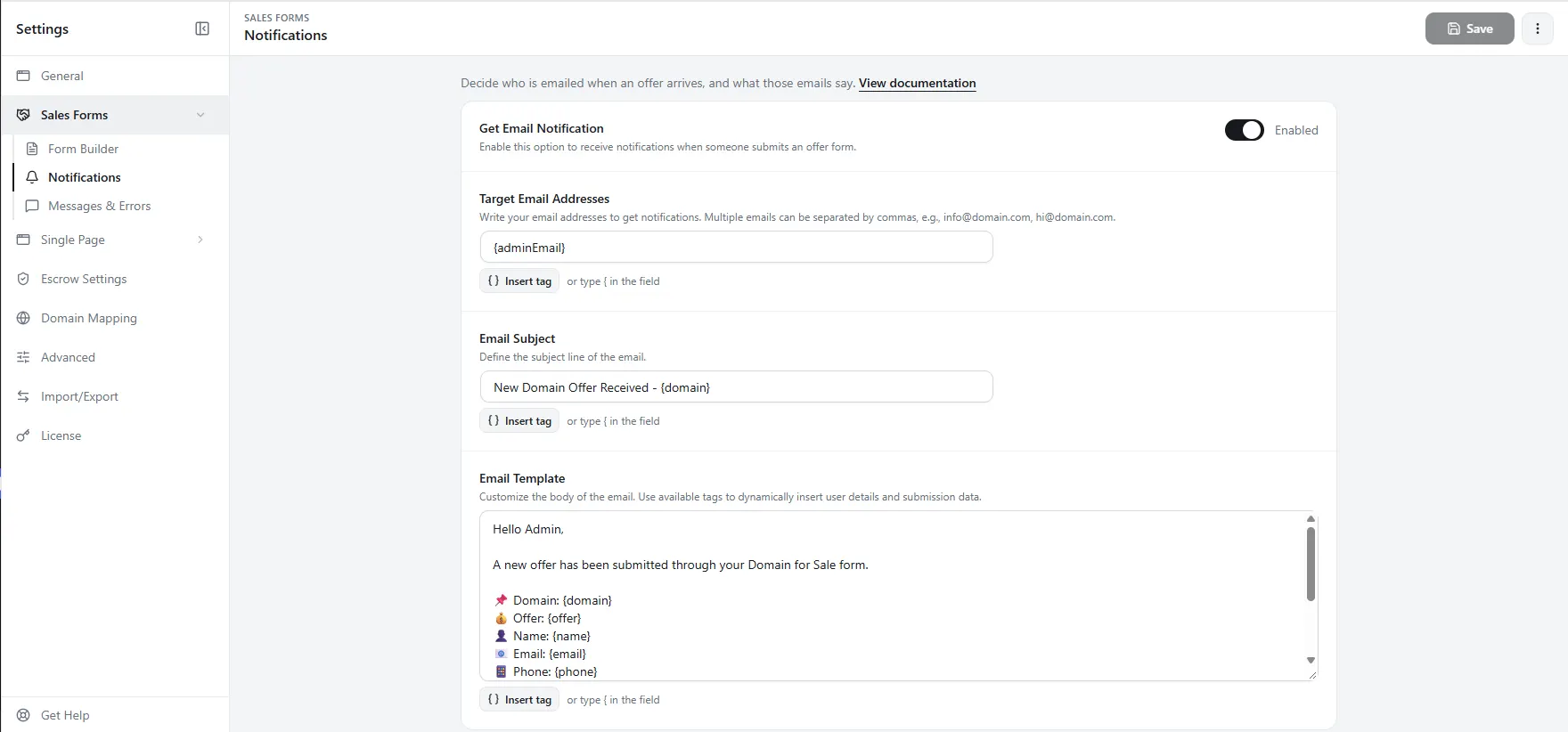
Settings → Offers configures three genuinely separate features that are easy to conflate. Admin Notification alerts you by email when a new offer arrives, supporting multiple recipients and dynamic tags like {domain}, {name}, {offer}, and {proposal}. Bidder Confirmation is a separate, optional email telling the buyer their submission was received. Email Verification is a third, independent toggle requiring the buyer to confirm control of their email address — unverified offers show a “Pending Verification” label with a Resend action, switching to a green “Verified” badge once confirmed.
Be clear about what verification actually proves: it confirms the buyer controls that email address. It does not confirm their legal identity, their ability to pay, or that their business is legitimate. Domain For Sale also supports reCAPTCHA v2 and v3 on the offer form to cut down on automated spam submissions — useful, but not a fraud check in the financial sense either.
Exporting Offers
Offers can be exported as CSV directly from the Offers screen — useful for backing up submissions, reviewing them offline in a spreadsheet, or sharing with an authorized team member. Whether the export respects your active filters or always includes every offer isn’t documented publicly, so check the current behavior in your own dashboard before relying on it. And however you export, avoid uploading buyer names, emails, or phone numbers into third-party tools without considering privacy and confidentiality first.
When an Offer Looks Serious: The Escrow Handoff
This isn’t a negotiation tutorial, but it’s worth knowing where the workflow goes next. Once you’ve reviewed the price, message, and context and agreed on terms with the buyer, an accepted offer can move into a payment workflow: with Escrow.com configured (a Pro feature), the Offers screen exposes an Invite to Buy via Escrow action that emails the buyer a secure payment link. From there, the related activity moves onto the separate Transactions screen, tracked through a five-stage status: Agreement, Payment, Domain Transfer, Inspection, Closed.
Keep the responsibility boundary in mind: Domain For Sale facilitates this workflow, but Escrow.com remains the actual escrow and transaction provider. If you haven’t configured the integration yet, see our Escrow.com setup guide. Also worth noting: an offer’s verification status (Pending/Verified) and a transaction’s Escrow status are two separate things tracked on two separate screens — don’t expect one field to represent both.
Managing Offers Across Multiple Domains
Centralized management starts paying off once you’re juggling several domains and repeated buyer inquiries. Filter by one domain to compare multiple offers on it side by side, instead of re-reading separate email threads. Filter by recent date range to catch up on new activity after time away. Filter by extension to review offers across a mixed-TLD portfolio in batches. One thing the current Offers screen doesn’t do automatically is match the same buyer across multiple domains or deduplicate their submissions — that’s a manual check if it matters to you.
Dashboard Stats vs. the Offers Inbox
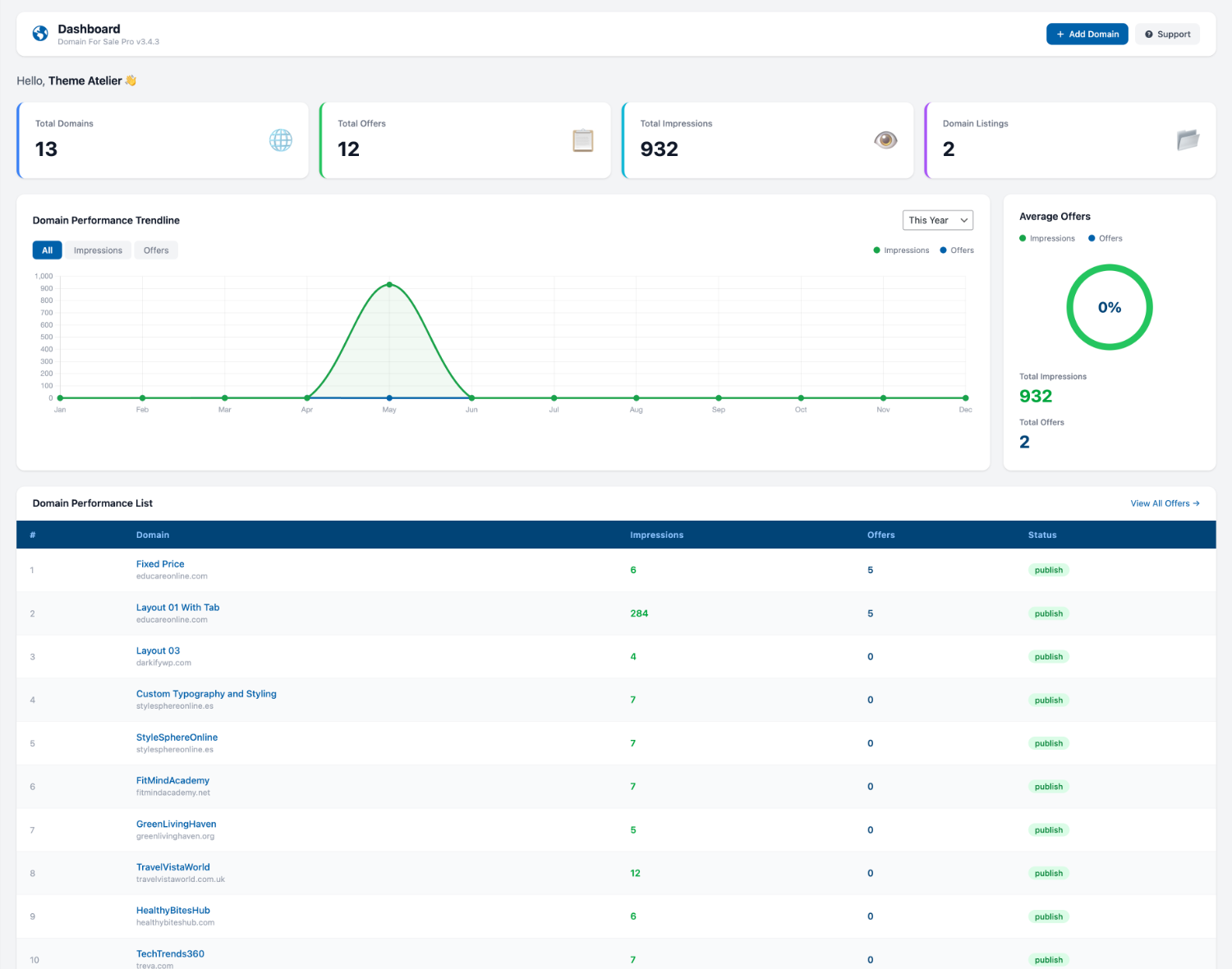
The main Domain For Sale Dashboard shows portfolio-level stat cards — Total Domains, Total Offers, Total Impressions, and Domain Listings — which is useful for a snapshot but isn’t where you actually work a submission. The Offers screen is the working inbox; the Dashboard just tells you how much activity is happening in aggregate. Don’t try to manage individual buyers from the stats cards — there’s nothing there to click into.
A Simple Weekly Offer Routine
This is editorial practice, not a plugin feature: review new submissions regularly, check verification status on anything unverified, read the domain, amount, and proposal together rather than skimming the amount alone, decide whether a reply is warranted, export or record externally if your process needs more tracking than the inbox provides, and move agreed terms into your payment workflow. Respond promptly enough for your own sales process — there’s no universal optimal response time worth chasing.
Free vs. Pro at a Glance
| Feature | Free | Pro |
|---|---|---|
| Offer form on the sales page | Yes | Yes |
| Offers stored in WordPress | Yes | Yes |
| Centralized Offers inbox (search, filters, export) | No | Yes |
| Full buyer/context detail view | No | Yes |
| Email verification + Resend | No | Yes |
| reCAPTCHA v2/v3 | No | Yes |
| Escrow.com integration | No | Yes |
| Admin notification / bidder confirmation emails | Tier not publicly confirmed — public sources disagree; verify in your own dashboard | |
Common Mistakes
- Relying only on notification emails instead of checking the stored Offers screen.
- Assuming email verification proves buyer identity or ability to pay.
- Treating device or IP context as proof a buyer is legitimate.
- Confusing an offer with a completed sale, or Offers with Transactions.
- Assuming every low first offer must be negotiated — some are exploratory, unrealistic, or spam.
- Exporting buyer data into third-party tools without considering privacy.
- Running an outdated plugin version or following screenshots from an old release.
Frequently Asked Questions
Can I see all Domain For Sale offers in one place?
Yes — the Offers screen (Domain For Sale → Offers) centralizes submissions from across your portfolio into one searchable, filterable inbox.
What information does Domain For Sale store with an offer?
Buyer name, email, phone, offer amount, proposal message, the domain, and submission date, along with context like device, browser, and referrer. Country/location was removed from offers as of v3.7.0.
Can I search and filter domain offers?
Yes — by domain, extension, date range, verification status, and free-text search, letting you review a large or mixed-TLD portfolio without scrolling through everything at once.
Does Domain For Sale notify me when a new offer arrives?
Yes, via a configurable Admin Notification email under Settings → Offers, supporting multiple recipients and dynamic tags like the domain, buyer name, and offer amount.
Can buyers verify their email after making an offer?
Yes, when Email Verification is enabled. It confirms the buyer controls that email address — not their identity or ability to pay — and sellers can resend the verification email if needed.
Can I start an Escrow.com sale from an accepted offer?
Yes, when Escrow.com integration is configured — an “Invite to Buy via Escrow” action sends the buyer a payment link, with progress tracked on the separate Transactions screen.
Conclusion
You don’t need a spreadsheet or a search through old emails to remember who offered what on which domain. Domain For Sale’s Offers screen centralizes submissions, lets you search and filter across a growing portfolio, and hands off cleanly to Escrow.com once a deal is ready to close — without pretending to be a full sales CRM.
If you haven’t set up an offer form yet, start with our Make an Offer form guide. Once offers are coming in, the workflow above is what happens next.