


If you want to sell multiple domains on WordPress, giving each one its own disconnected landing page means running dozens of separate mini-sites, each with its own template and pricing fields, with no way for a buyer to see what else you’re selling. Dump every domain into one long text list instead, and buyers lose the ability to compare, filter, or browse.
Domain For Sale (currently v3.7.0) solves this with a structure built for portfolios: individual Domain records, reusable Templates, and Domain Listings that display multiple domains together in a searchable Grid or List. This guide walks through building that portfolio, from adding your first domain to publishing a listing buyers can actually search.
Product details below are checked against the current WordPress.org listing, changelog, and live wpdomainforsale.com documentation as of the plugin’s v3.7.0 release. Where a feature’s Free/Pro availability isn’t publicly documented, it’s flagged rather than guessed.
Key Takeaways
- Since v3.6.0, Domain For Sale separates individual Domains, reusable Templates, and portfolio Domain Listings into distinct objects.
- A Domain Listing shows multiple domains in Grid or List layout, each with built-in search, sort, and buyer filters.
- Choose Grid or List based on how buyers browse your portfolio, not simply how many domains you own.
- Every domain keeps its own dedicated sales page, even when it’s shown inside a shared portfolio listing.
- Bulk editing (a Pro feature added in v3.6.0) updates price, status, and other fields across many domains at once.
- Listings publish through a shortcode or the dedicated Domain Listing block for the WordPress block editor.
Table of Contents
How Domain For Sale Organizes a Portfolio
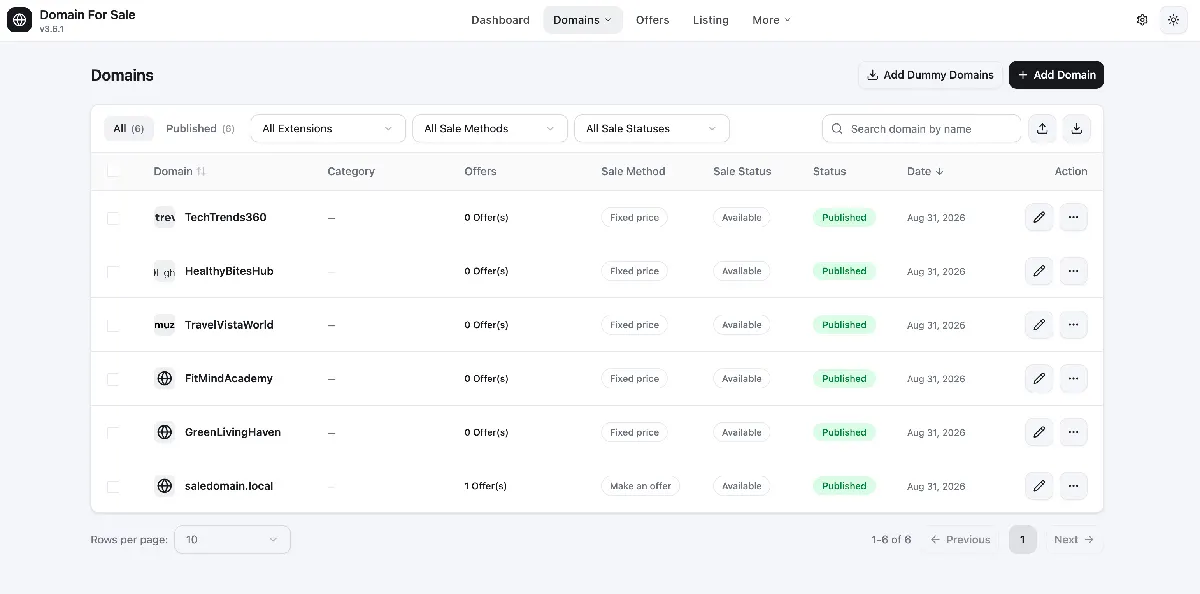
Domain For Sale splits a portfolio into three separate objects: Domains, Templates, and Domain Listings. A Domain is one sellable record. A Template is a reusable landing-page design that no longer belongs to a single domain. A Domain Listing displays several Domains together as one browsable portfolio.
- Domains — your inventory. Each domain has its own name, tagline, description, category, sale method, price, status, and landing-page choice.
- Templates — reusable designs for individual domain pages. One template can render an entire portfolio while each domain keeps its own name, price, and status.
- Domain Listings — collections that determine which domains appear, how they’re presented (Grid or List), which buyer controls show up, and how pagination works.
The flow in practice: domain records go into a Domain Listing, a buyer browses that listing, clicks a domain, and lands on that domain’s individual page to make an offer or buy. Keeping these three objects distinct is what makes the rest of this tutorial make sense.
A quick note on “domain mapping”
Domain For Sale’s newest release, v3.7.0, added an actual Domain Mapping feature: pointing a real, DNS-connected domain at a specific page, listing, or template. That’s a different job from the Domain Listing portfolio feature covered here. If you searched for “domain mapping” hoping to build a browsable portfolio page, the feature you actually want is a Domain Listing, not Domain Mapping.
Grid vs. List: Which Layout Fits Your Portfolio?
Domain For Sale’s current screenshots show Grid as a card-based, visually separated view and List as a compact table with attributes, description, price, and a single action column. Neither layout is automatically “better” — the right choice depends on whether buyers are browsing or comparing, not on how many domains you own.
| Consideration | Grid | List |
|---|---|---|
| Best for | Visual browsing, brandable names | Fast comparison, dense scanning |
| Information density | Lower per card | Higher — more domains visible per screen |
| Presentation | Responsive card stack | Compact, table-style rows |
| Buyer controls | Search, sort and filters built in | Search, sort and filters built in |
| Works well for | Portfolios where names sell themselves | Portfolios buyers compare like a catalog |
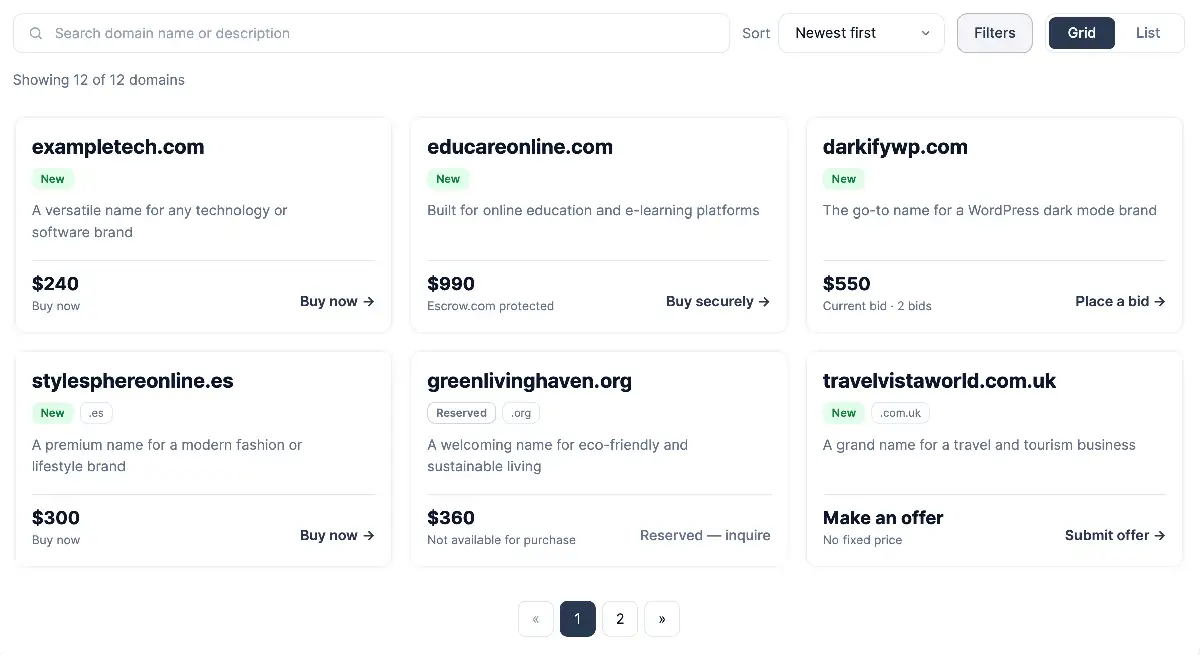
What the current Grid layout shows
The Grid layout displays each domain as a responsive card with price and calls to action — Buy Now, Place a Bid, and Make an Offer — plus search and sort built in. Use Grid when domain names themselves are the main draw, or when visual separation between cards helps buyers browse a collection rather than scan a table.
What the current List layout shows
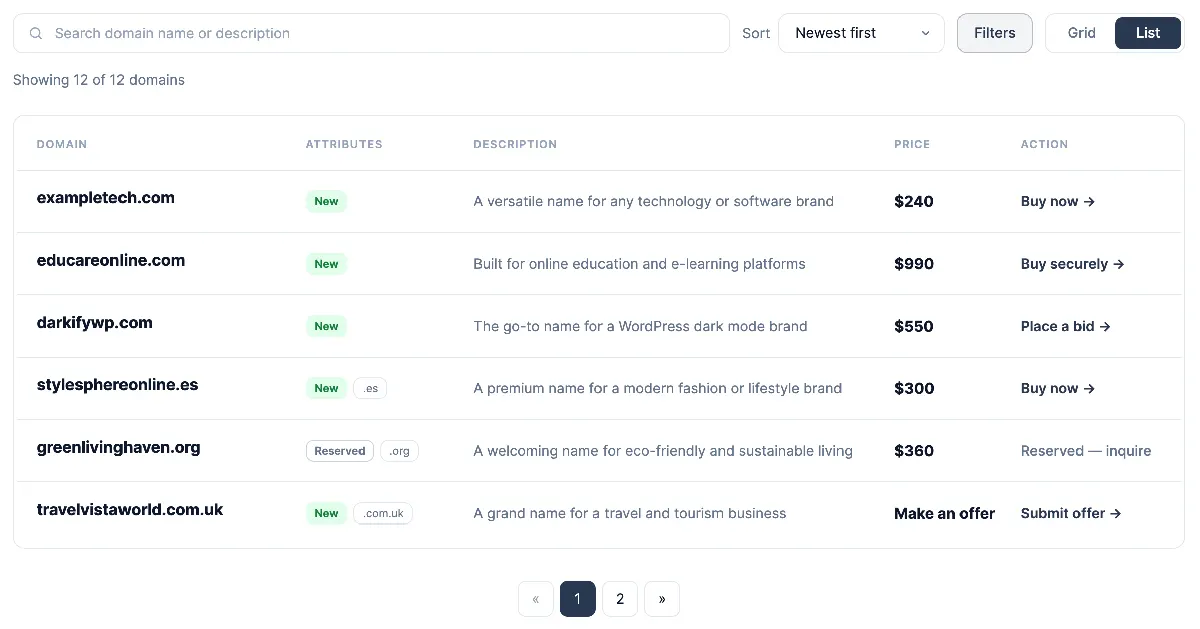
The List layout renders as a compact table: domain, attributes, description, price, and one action column per row, built for scanning many domains quickly. Use List when buyers are comparing prices or attributes across a larger inventory, since more information stays visible without scrolling through individual cards.
Step 1: Add Your Domain Inventory
Every domain you plan to sell starts as its own record under Domain For Sale → Domains in your WordPress dashboard. Each Domain record holds its own name, tagline, description, category, sale method, asking price, sale status, and landing-page choice, independent of any Template or Listing it later appears in.
If you’ve used Domain For Sale before the 3.6.0 update, don’t reuse the old workflow of building one Template per domain. Add the domain as its own record first, then decide later which Template design should render it.
Importing many domains at once
Domain For Sale supports bulk import and export in CSV, XML, and JSON formats for both individual Domains and full Listings, so a large portfolio doesn’t have to be entered one record at a time. One caveat worth flagging: the plugin’s own WordPress.org feature list and its pricing page currently disagree on whether import/export requires Pro, so confirm your plan’s current allowance before relying on it for a big migration.
Step 2: Build a Domain Listing
Domain Listings live under Domain For Sale → Domain Listing. Creating one opens a builder with three areas: a Domains tab for choosing which domains appear, a Layout and Style tab for Grid/List and responsive settings, and a Buyer Controls tab for search and filters.
- Domains tab — include or exclude specific domains, and filter the listing by sale status, sale method, category, or extension. This controls which domains enter the listing, not what buyers can do once it’s live.
- Layout and Style tab — switch between Grid and List, set columns per device, adjust card gap and style presets, and choose what shows on each card.
- Buyer Controls tab — turn the search and filter bar on or off, and choose exactly which filters visitors are allowed to use.
Keep those two ideas separate: the Domains tab decides your inventory for this listing, while Buyer Controls decides how visitors narrow what’s already published. Mixing them up is a common source of confusion when a domain that should be visible doesn’t show up, or a filter buyers expect isn’t there.

Step 3: Turn On Buyer Search, Sort and Filters
Buyer-facing controls on a live Domain Listing currently include search, sort, and filters for sale type, status, extension, character length, price range, and category. More filters aren’t automatically better: a 20-domain all-.com portfolio rarely needs an extension filter, while a 500-domain multi-TLD catalog usually benefits from one.
Turn on the filters that match your actual inventory and leave the rest off. A cluttered filter bar slows buyers down just as much as having no filters at all.
Step 4: Set Responsive Columns and Pagination
Grid columns can be set per device — desktop, tablet, and mobile — from the Layout and Style tab, and pagination keeps a large listing from loading every domain on one page. Test both layouts on an actual phone before publishing, since a List’s table-style rows need different mobile handling than a Grid’s stacked cards.
Step 5: Publish the Listing
Every Domain Listing generates its own shortcode you can paste into any post or page. Since v3.6.0, Domain For Sale also ships a dedicated Domain Listing block for the block editor: pick a listing in the sidebar and it renders live in the editor, cards, search, sort, and pagination included, exactly as it will appear once published.
Outside Gutenberg, the plugin is confirmed compatible with Elementor, Classic Editor, WPBakery, Divi, Beaver Builder, Bricks, and Oxygen, so the same listing shortcode can be dropped into most page-builder layouts as well.
From Portfolio to Sale: What Happens When a Buyer Clicks a Domain?
A Domain Listing is a discovery layer, not the full sales experience. Clicking a domain sends the buyer to that domain’s own landing page, built from its assigned Template, where the actual price, description, and offer or purchase action live, separate from the portfolio view.
Each domain’s Landing Page setting offers three options: Automatic (the default, which hands the decision to your assignment rules), Standard, or Template — the last two answer for that one domain and override any rule. Rules that assign templates by category or by specific named domains, evaluated in order, are a Pro feature. Individual landing pages aren’t a legacy fallback here; they’re the destination every portfolio listing is designed to send buyers toward.
Managing a Larger Portfolio
Bulk editing, added in v3.6.0, lets you select any number of Domain records and update one field across all of them at once — sale method, price, status, sold date, featured flag, tagline, or category. This is a Pro feature, confirmed in both the WordPress.org changelog and the official changelog page.
For portfolios beyond a handful of domains, multiple curated listings usually work better than one giant page. A few examples that fit within the current filtering options:
- Featured Domains — a curated Grid of your best names.
- All Domains — a searchable List covering the full catalog.
- .com Portfolio — filtered by extension.
- Fixed-Price Domains — filtered by sale method.
Common Mistakes to Avoid
- Confusing a Template (a design) with a Domain (a sale record) — a habit left over from pre-3.6.0 versions.
- Choosing Grid or List based on domain count instead of how buyers actually browse.
- Turning on every buyer filter regardless of whether the portfolio needs it.
- Adding hundreds of domains by hand when bulk import already handles it.
- Skipping mobile testing on both Grid and List before publishing.
- Treating the portfolio listing as a replacement for individual domain pages instead of the discovery layer that leads to them.
A Quick Example: Organizing 60 Domains
A domain investor owns 60 domains: 35 .com, 10 .ai, and 15 other TLDs. Instead of building 60 disconnected page designs, the workflow looks like this: add or import all 60 domains, assign categories, build an All Domains List view for browsing the full catalog, build a Featured Domains Grid for the best names, enable the buyer filters that actually match the inventory (extension makes sense here; character length might not), assign landing-page templates, and place the portfolio on the main sales page.
No invented sales lift, no time-savings statistic — the value is a portfolio buyers can actually navigate instead of a page that just lists names.
Frequently Asked Questions
Can I sell multiple domains on WordPress?
Yes. Domain For Sale stores each domain as its own record, then displays several of them together in a Domain Listing using Grid or List layout, with buyers clicking through to each domain’s individual sales page.
What’s the difference between a Domain, a Template, and a Domain Listing?
A Domain is a sellable record (name, price, status). A Template is a reusable landing-page design that can render many domains. A Domain Listing is the portfolio view that displays multiple Domains together, in Grid or List form.
Should I use Grid or List for my domain portfolio?
Base it on buyer behavior, not portfolio size. Grid suits visual browsing and brandable names; List suits buyers comparing prices and attributes across many domains at once.
Can buyers search and filter a Domain For Sale portfolio?
Yes. Current listings support built-in search, sort, and filters for sale type, status, extension, character length, price range, and category, configured from the listing’s Buyer Controls tab.
Can I import hundreds of domains instead of adding them one by one?
Domain For Sale supports CSV, XML, and JSON import and export for both Domains and Listings. Free versus Pro availability for this feature isn’t consistently documented across the plugin’s own pages, so confirm current plan requirements before a large import.
Does each domain still get its own individual landing page inside a portfolio?
Yes. The Domain Listing is a browsing layer; clicking a domain sends the buyer to that domain’s own landing page, built from its assigned Template, where the offer, bid, or purchase action actually happens.
Conclusion
You don’t need a separate, disconnected WordPress setup for every domain in a portfolio. With Domain For Sale’s current architecture, Domains hold the inventory, Domain Listings organize the portfolio, and Templates control the reusable sales-page design behind each one.
A practical next step: add or import your inventory, build one portfolio listing, test Grid and List against your own domains, configure the buyer controls that match your catalog, and confirm the individual-domain sales flow works end to end. For the basics of setting up a single domain’s landing page first, see our step-by-step landing page tutorial.