

Domain Mapping lets you point any domain you own at one of your listings, so visitors who type that domain into their browser see your listing — with the domain staying in the address bar the whole time. No redirect, no “why did the URL change” moment for the buyer, and no separate WordPress installation to manage for every domain in your portfolio.
If you’re a domain investor: this is what lets you buy a domain, point it at the matching listing on your main site, and have it look like that domain has always had its own dedicated “for sale” page.
What Domain Mapping actually does #
In plain terms: imagine you own getdomainforsale.com and you’re selling it through a listing on your main site, wpdomainforsale.com. Without Domain Mapping, the only way to show that listing at getdomainforsale.com would be to either install a whole separate copy of WordPress there, or redirect visitors from getdomainforsale.com to a page on wpdomainforsale.com — which changes the address bar and makes the domain you’re trying to sell look less like a real, standalone site.
Domain Mapping does neither. It tells your existing WordPress site: “when someone visits using this other hostname, show them this specific listing” — using the exact same site, the exact same database, the exact same plugin, just answering to more than one name.
🔧 Technical note: this works by intercepting the incoming request early in WordPress’s routing (on parse_request), reading the Host header the visitor’s browser sent, checking it against a mapping table, and — if it matches — swapping in the mapped post as the main query before WordPress ever decides what to render. It is a content-serving proxy at the request-routing level, not an HTTP redirect: no Location header is ever sent, no 301/302 status code, and the browser’s address bar never changes.
What you need before you start #
Three things have to be true before a mapped domain will actually show your listing. The plugin cannot set these up for you automatically — they happen outside WordPress, in your domain registrar and hosting account.
| Requirement | What it means |
|---|---|
| DNS pointed at your server | The domain’s A record must point at the same server your WordPress site is hosted on. If both domains are already on the same hosting account, this is often already true. |
| The domain attached to your site’s files | Your hosting account needs to know that requests for this domain should be served by the same WordPress installation as your main site — not a new, separate one. Different hosts call this different things (see the host-specific notes below). |
| An SSL certificate for the domain | For visitors to reach the domain securely (https://), it needs its own SSL certificate. Most modern hosts issue this automatically once the domain is correctly attached — this can take anywhere from a few minutes to a few hours. |
None of this is unique to this plugin. Any tool that maps one domain onto another’s content — sometimes called “domain mapping,” “parked domains,” or “addon domains” — needs the same three things. If you’ve used a similar plugin before, this will feel familiar.
Step-by-step setup #
Step 1 — Make sure your domain’s DNS points at your server #
Log in to wherever the domain is registered (or wherever its DNS is managed) and check its A record. It needs to point at the same IP address your main WordPress site uses. If you bought the domain through the same host your site runs on, this may already be correct.
Step 2 — Attach the domain to your site’s hosting #
This is the step that varies most by host. The goal is always the same: tell your hosting account “this domain should serve the exact same files as my main site,” not “create a brand-new, separate site for this domain.”
- cPanel-based hosts (many budget/shared hosts): look for Parked Domains (sometimes called “Aliases”) under Domains. A parked domain automatically serves the same content as your primary domain — no extra steps needed.
- Hostinger and similar modern control panels: these often don’t have a one-click “parked domain” feature. You’ll typically need to either use the File Manager to copy your main site’s files into the new domain’s folder, or — if you have SSH access — replace the new domain’s folder with a symbolic link to your main site’s folder so both always stay in sync. See Troubleshooting below for more detail.
- Managed WordPress hosts, VPS, or anything else: contact your host’s support and ask specifically for help “pointing a second domain at the same WordPress installation as my primary domain, sharing the same document root.” That phrase gets you to the right support article faster than describing the goal in your own words.
Step 3 — Add the mapping in Domain For Sale #
In your WordPress admin, go to Domain For Sale → Settings → Domain Mapping.
- Type the domain you want to map into the hostname field (for example
getdomainforsale.com— nohttps://, no trailing slash, just the domain itself). - Use the search field next to it to find the listing you want it to point at, by title.
- Click Add mapping.
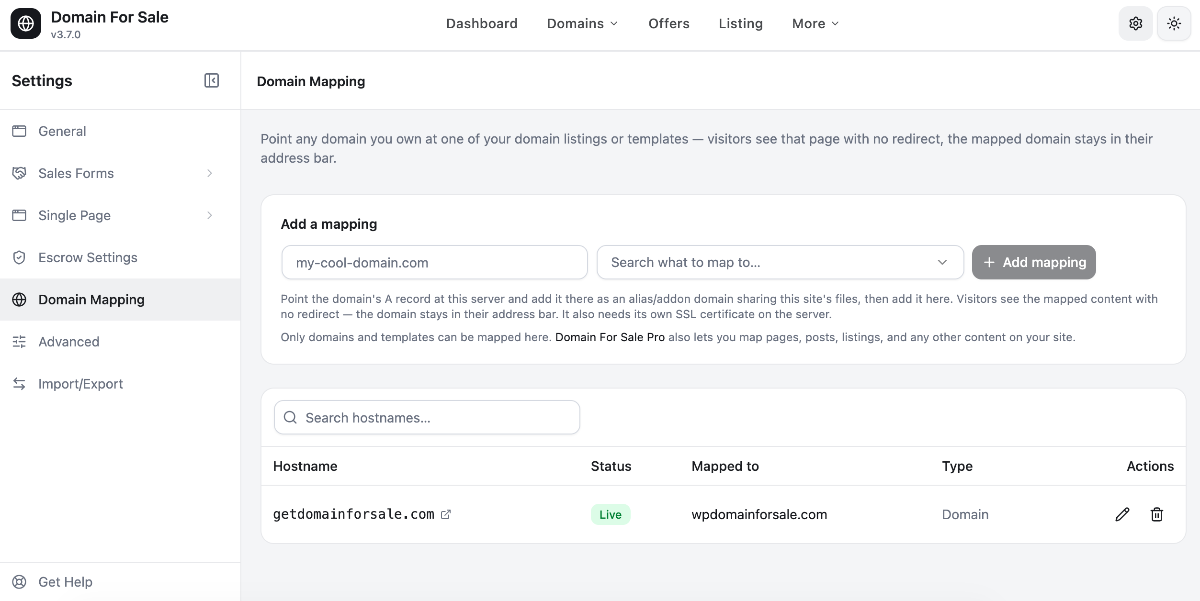
That’s it on the plugin side — the mapping takes effect immediately, as soon as steps 1 and 2 above are also in place.
Step 4 — Check it worked #
Each mapped domain in the list has a Check button that tells you whether the domain is currently reachable at all (a basic “does something answer here” probe, not proof it’s fully configured). The real test is visiting the domain in your browser: you should see your listing, with the mapped domain staying in the address bar and no redirect happening.
DNS changes can take anywhere from a few minutes to (rarely) 24–48 hours to fully propagate everywhere. If it doesn’t work immediately after setup, that’s the most likely reason — try again a little later before assuming something is wrong.
Editing and removing a mapping #
Every mapping in the list has two buttons:
- Edit (pencil icon) — change the hostname, or point the same mapping at a different listing, without deleting and recreating it. Useful if you decide a domain should sell a different listing than it currently does, or you typed the hostname wrong.
- Remove (trash icon) — deletes the mapping entirely. The domain itself is untouched (you still own it) — it simply stops showing your listing. Visitors will then see whatever your hosting serves for that domain by default (usually a blank page or a hosting placeholder, unless you set something else up).
Examples for different scenarios #
Scenario 1 — The everyday case: one domain, one listing #
You own bestdomainever.com and are selling it through a listing titled “BestDomainEver.com — Premium Brandable Domain” on your main site. You map bestdomainever.com to that listing. Visitors to that domain see the sale page directly, exactly as if it had its own dedicated site.
Scenario 2 — Multiple domains selling the same listing #
You own both coolbrand.com and coolbrand.net, and you’re selling them as a bundle through one listing. You can map both hostnames to the same listing — there’s no limit on how many domains can point at one piece of content, only that each hostname itself can only be mapped once.
Scenario 3 — Migrating a mapping to a different listing #
A domain was mapped to Listing A, but you’ve since consolidated it into Listing B. Instead of removing the mapping and re-adding it, click Edit on the existing mapping and change what it points to. The domain never goes “unmapped” in between.
Scenario 4 — Mapping a domain at a custom landing page (Pro) #
You’ve built a dedicated WordPress Page (not a domain listing) with custom branding for one premium domain — maybe using a page builder. With Domain For Sale Pro, you can map the domain directly at that Page instead of a listing, giving you full design control over how that one domain’s sale page looks.
Scenario 5 — Mapping a domain at your whole portfolio (Pro) #
Instead of pointing a domain at one listing, you map it at a Domain Listing (a catalogue/portfolio page showing several domains at once). A visitor who finds this domain sees your entire available portfolio, not just the one domain — useful for a domain that’s more valuable as a “come see what else I have for sale” entry point.
Scenario 6 — Mapping a domain at content from another plugin (Pro) #
If your site sells something else alongside domains — say, a WooCommerce product — Pro lets you map a domain directly at that product page too. Domain Mapping isn’t limited to the Domain For Sale plugin’s own content in Pro; it can point at anything public on your site.
Free vs. Pro #
| Free | Pro | |
|---|---|---|
| Map a domain to a Domain listing | ✅ Yes | ✅ Yes |
| Map a domain to a Template (legacy/pre-migration sites) | ✅ Yes | ✅ Yes |
| Map a domain to a WordPress Page or Post | ❌ Not available | ✅ Yes |
| Map a domain to a Domain Listing (portfolio page) | ❌ Not available | ✅ Yes |
| Map a domain to content from other plugins (e.g. a WooCommerce product) | ❌ Not available | ✅ Yes |
| Add, edit, remove mappings; live-status check | ✅ Yes | ✅ Yes |
In the Free version, the search field in Domain Mapping will only ever find Domains and Templates — which covers the core use case of selling a domain through its listing. Pro widens that search to every page, post, and public content type your site has.
Troubleshooting #
The domain shows the wrong thing, or my hosting’s default page #
This almost always means Step 2 above (attaching the domain to your site’s files) isn’t complete yet — the domain’s DNS may be correct, but your hosting account hasn’t been told to serve your WordPress site’s files for it. Some hosts (Hostinger among them) create a brand-new, empty, separate hosting slot for every domain by default rather than sharing one. Two fixes, in order of preference:
- File Manager copy (no technical tools needed): in your hosting panel’s File Manager, delete whatever’s in the new domain’s folder, then copy every file from your main site’s folder into it. This makes the new domain run the exact same WordPress installation. The one downside: it’s a snapshot, not a live link — if you later update this plugin, your theme, or WordPress itself, you’ll need to repeat the copy for that domain to pick up the change.
- SSH symbolic link (if your host offers SSH access): instead of copying files, replace the new domain’s folder with a symbolic link pointing at your main site’s folder. This keeps both domains permanently in sync with no repeated copying. Ask your host’s support for help if you’re not comfortable with a terminal — the concept to search for is “symlink one hosting account’s document root to another.”
The domain redirects me back to my main site #
This is usually a security plugin or a hosting-level rule “forcing” every request back to your primary domain, or forcing HTTPS in a way that doesn’t know about the mapped domain yet. Check for a “force canonical domain,” “force SSL,” or similar setting in any security/SEO plugin you run, and make sure the mapped domain is excluded from it, or that its own SSL certificate has actually finished issuing.
The “Check” status shows “Not detected” #
This means nothing responded when the plugin tried reaching the domain over plain HTTP — usually because DNS hasn’t finished propagating yet, or Step 2 (attaching the domain to your hosting) isn’t done. It’s a quick sanity check, not a full diagnosis — give it a few minutes after each change and check again.
My main site stopped working after adding a mapping #
This should never happen — Domain Mapping is built to be strictly additive, and a broken or unexpected mapping falls straight through to your site’s completely normal behaviour rather than interfering with it. If your main site is affected, it’s worth checking whether something else changed at the same time (a DNS edit made to the wrong domain, for instance) rather than assuming this feature caused it.
Frequently Asked Questions #
Does this redirect visitors to my main site? #
No. There is no redirect at any point. The domain a visitor typed stays in their address bar the entire time; your listing’s content is simply served directly to them under that domain.
Do I need to install WordPress separately for every domain I map? #
No — that’s the entire point of this feature. One WordPress installation can answer for as many mapped domains as you like, each showing whatever listing (or, in Pro, page/post/content) you’ve pointed it at.
Does every mapped domain need its own SSL certificate? #
Yes. SSL certificates are issued per domain name, so each one you map needs its own — but most hosts issue these automatically and for free once the domain is properly attached to your hosting.
Can I map more than one domain to the same listing? #
Yes, there’s no limit. The only restriction is that one specific hostname can only ever point at one destination at a time — you can’t map example.com to two different listings simultaneously, but you can map example.com and example.net both to the same listing.
Can I map a domain to any page on my site? #
In the Free version, only to a Domain listing or a Template. Domain For Sale Pro removes that restriction and lets you map to any Page, Post, or other public content on your site.
What happens to the domain if I remove its mapping? #
The domain itself is completely unaffected — you still own it, and its DNS settings don’t change. It simply stops showing your listing; visitors will see whatever your hosting account serves for that domain otherwise (typically nothing, until you set something else up there).
Will this affect my main website’s domain? #
No. Domain Mapping never intercepts or changes anything about your site’s own primary domain — it only acts on hostnames you’ve explicitly added to the mapping list.
Do I need the mapped domain to be registered with the same company as my hosting? #
No — you can register a domain anywhere and still map it, as long as you’re able to point its DNS at your server and attach it to your hosting account (steps 1 and 2 above). It’s often simpler when everything is in one account, but it isn’t required.
Will search engines get confused seeing the same content on two domains? #
The plugin automatically sets the correct canonical URL to the mapped domain itself whenever a visitor reaches it that way, which is the standard way of telling search engines “this is the real address for this content” and avoiding duplicate-content issues.
Can I use this alongside Cloudflare or a similar DNS/CDN service? #
Yes, as long as traffic for the mapped domain ultimately reaches your WordPress server the same way your main site’s traffic does. If you use Cloudflare, make sure the mapped domain is configured there the same way your primary domain is.
My host doesn’t seem to support “addon” or “parked” domains — what do I do? #
See the Troubleshooting section above — the File Manager copy method works on essentially any host with a web-based file manager, with no special hosting feature required.
Is there a limit to how many domains I can map? #
No limit is enforced by the plugin itself. In practice, the limiting factor is usually how many domains your hosting plan allows you to attach, which varies by host and plan.
Glossary #
| Term | Plain-English meaning |
|---|---|
| DNS | The system that turns a domain name (like example.com) into the numeric address of the server that should answer for it. |
| A record | The specific DNS setting that says “this domain’s website lives at this server address.” |
| SSL certificate | What makes a domain load securely over https:// instead of the insecure http://. |
| Redirect | Sending a visitor’s browser from one URL to a different one — the address bar changes. Domain Mapping deliberately never does this. |
| Canonical URL | The “official” address of a page, used by search engines to know which URL to show in results when the same content is reachable more than one way. |
| Hosting panel | The web-based control panel (cPanel, hPanel, Plesk, etc.) your hosting provider gives you to manage your account, domains, and files. |
| Document root | The folder on the server that holds a website’s actual files — what a domain’s hosting is really “pointing at.” |
| Addon / Parked domain | Hosting-panel terms for attaching a second domain name to serve the same website as an existing one. |


