


Import & Export Domains, Listings, and Settings #
Use the Import/Export tools to move domain data, listing data, and plugin settings between websites. This is helpful when you want to bulk upload domains, back up your data, or migrate your Domain For Sale setup to another WordPress site.
Access Import/Export Tools #
From your WordPress dashboard, go to: Domain For Sale → Tools
You will see two main tabs: Import and Export
Import Domains #
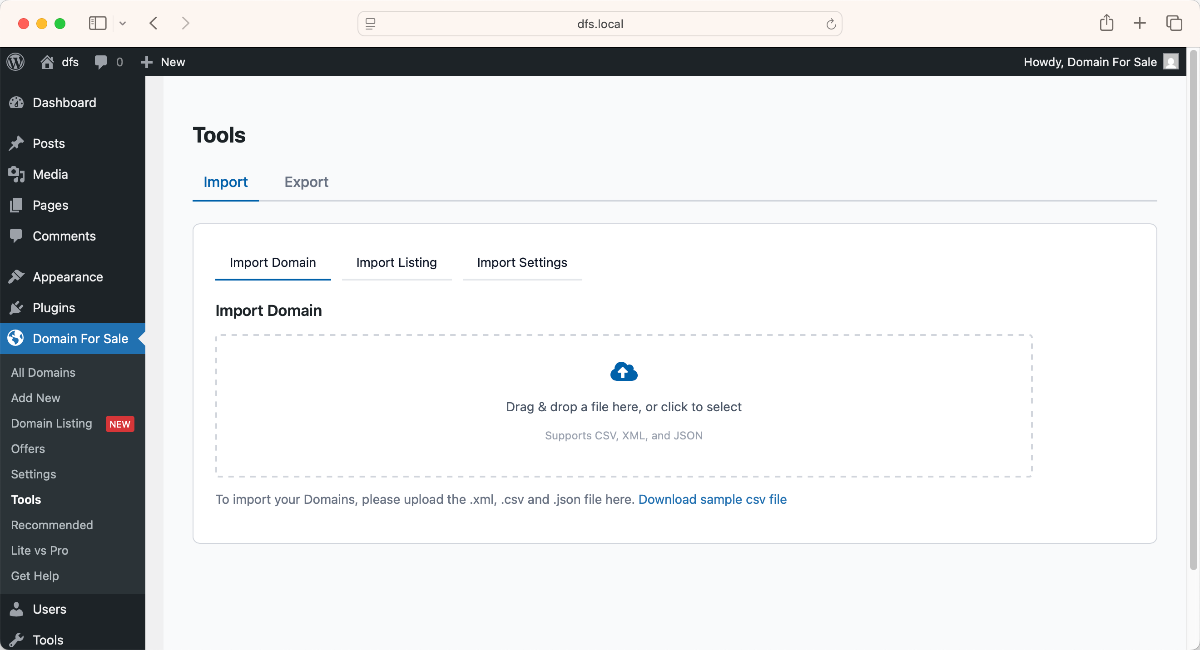
Use this option to bulk import domain records.
Step 1: Open Import Domain #
Go to: Tools → Import → Import Domain
Step 2: Download the Sample CSV File #
Click Download sample csv file to get the correct CSV structure.
The sample file includes these columns:
Domain Title,Domain Slug,Domain Name,Domain Logo,Dfs Sell Price,Status
Example:
Circle,circle,circle.com,https://example.com/circle.webp,800,publish
Velocity,velocity,velocity.com,https://example.com/velocity.webp,650,publish
Step 3: Prepare Your File #
Update the sample file with your own domain information.
Supported file formats:
CSV, XML, JSON
Make sure each domain has the correct title, slug, domain name, logo URL, price, and status.
Step 4: Upload Your File #
Drag and drop your file into the upload area, or click the upload box to select the file from your computer.
Step 5: Click Import Domain #
After selecting the file, click Import Domain.
Once the import is complete, you will see a success message.
Step 6: Check Imported Domains #
Go to: Domain For Sale → All Domains
You should now see your imported domains listed with their shortcodes, domain information, layout, and publish status.
Import Listings #
Use this option to import listing data.
Step 1: Open Import Listing #
Go to: Tools → Import → Import Listing
Step 2: Upload Your Listing File #
Drag and drop your listing file into the upload area, or click to select it.
Supported file formats:
CSV, XML, JSON
Step 3: Import Listing #
After selecting the file, click the import button to upload your listing data.
Import Settings #
Use this option to restore plugin settings from a previously exported settings file.
Step 1: Open Import Settings #
Go to: Tools → Import → Import Settings
Step 2: Upload Settings File #
Drag and drop your settings file into the upload area, or click to select it.
Only this format is supported:
JSON
Step 3: Restore Settings #
Upload the JSON file to restore your previous Domain For Sale settings.
Export Domains #
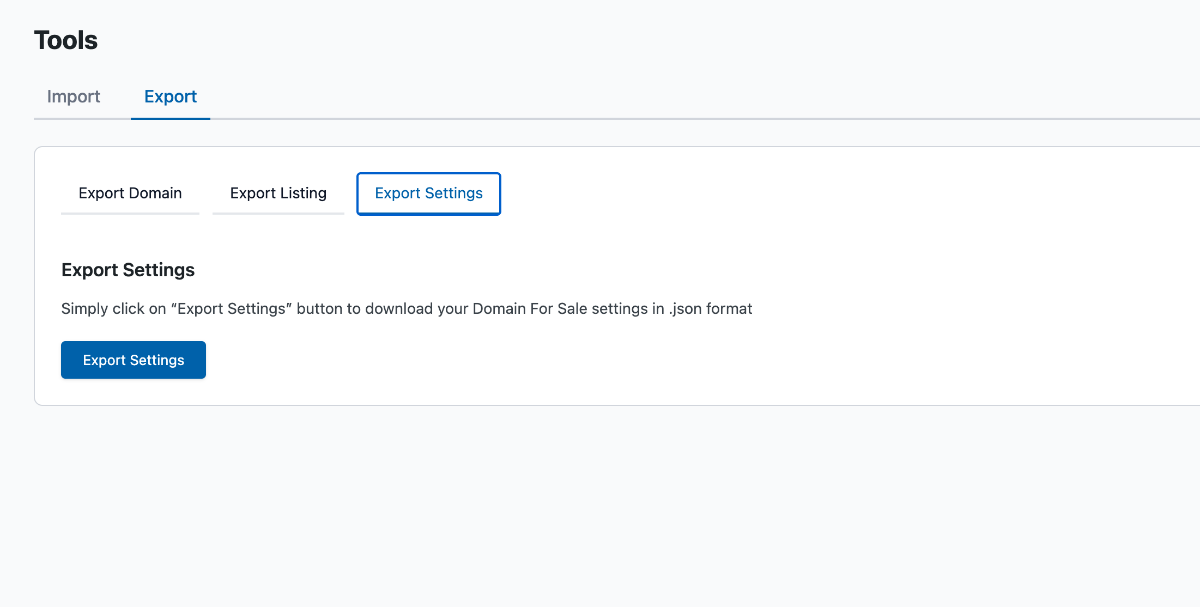
Use this option to export selected domains or all domains.
Step 1: Open Export Domain #
Go to: Tools → Export → Export Domain
Step 2: Select Domains #
Choose the domains you want to export.
You can select:
All domains
or select specific domains only.
Step 3: Select File Type #
Choose your export format:
CSV
XML
JSON
Step 4: Click Export Domain #
Click Export Domain to download the file.
Export Listings #
Use this option to export listing data.
Step 1: Open Export Listing #
Go to: Tools → Export → Export Listing
Step 2: Select Listings #
Choose all listings or specific listings you want to export.
Step 3: Select File Type #
Choose the export format:
CSV
XML
JSON
Step 4: Click Export Listing #
Click Export Listing to download the listing export file.
Export Settings #
Use this option to back up your plugin settings.
Step 1: Open Export Settings #
Go to: Tools → Export → Export Settings
Step 2: Click Export Settings #
Click Export Settings.
A JSON file will be downloaded to your computer.
You can later upload this file from Import Settings to restore your configuration on the same site or another WordPress website.
Recommended Use Cases for Import & Export Domains #
Use Import/Export when you want to:
Bulk upload multiple domains at once.
Move domains from one WordPress website to another.
Create a backup of domain listings.
Restore plugin settings quickly.
Manage large domain portfolios more efficiently.
Important Notes for Import & Export Domains #
Before importing, always check your file format and column structure.
Use the sample CSV file as a starting point for bulk domain uploads.
For settings import, only JSON files are supported.
After importing domains, check All Domains to confirm everything was added correctly.


